- /balances
-
/balances
- /orders
- /cancel
- /order
- /stats
- /pair
- /orderbook
- /trades
- /ticker
- /account
- /info
- /rates
- /calc
- /amount
- /interval
- /buypercent
- /enable t
- /start
- /stop
- /features
- /enable ob
- /enable liq
-
/enable liq
- /enable pw
-
/enable bw
-
/enable sp
-
/enable ag
-
/enable cl
-
/enable vc
-
/enable vv
-
/enable pmv
-
/enable fb
-
/enable be
-
/enable sm
-
/enable on
-
/enable ld
-
/enable qh
- /disable
- /buy & /sell
- /convert
- /fill
- /clear
-
/make price
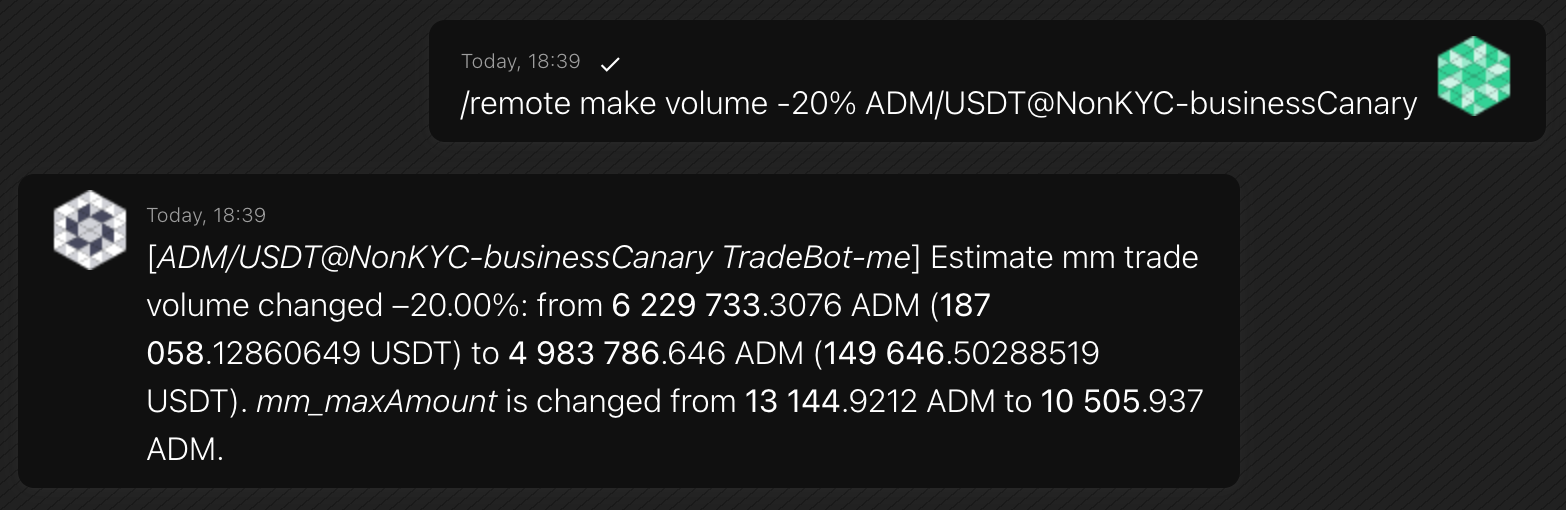
- /make volume
-
/twap
- /perpetual
- /positions
- /y
- /deposit
-
/withdraw
-
/show
-
/transfer
- /params
- /version
- /help
-
/remote
-
/balances
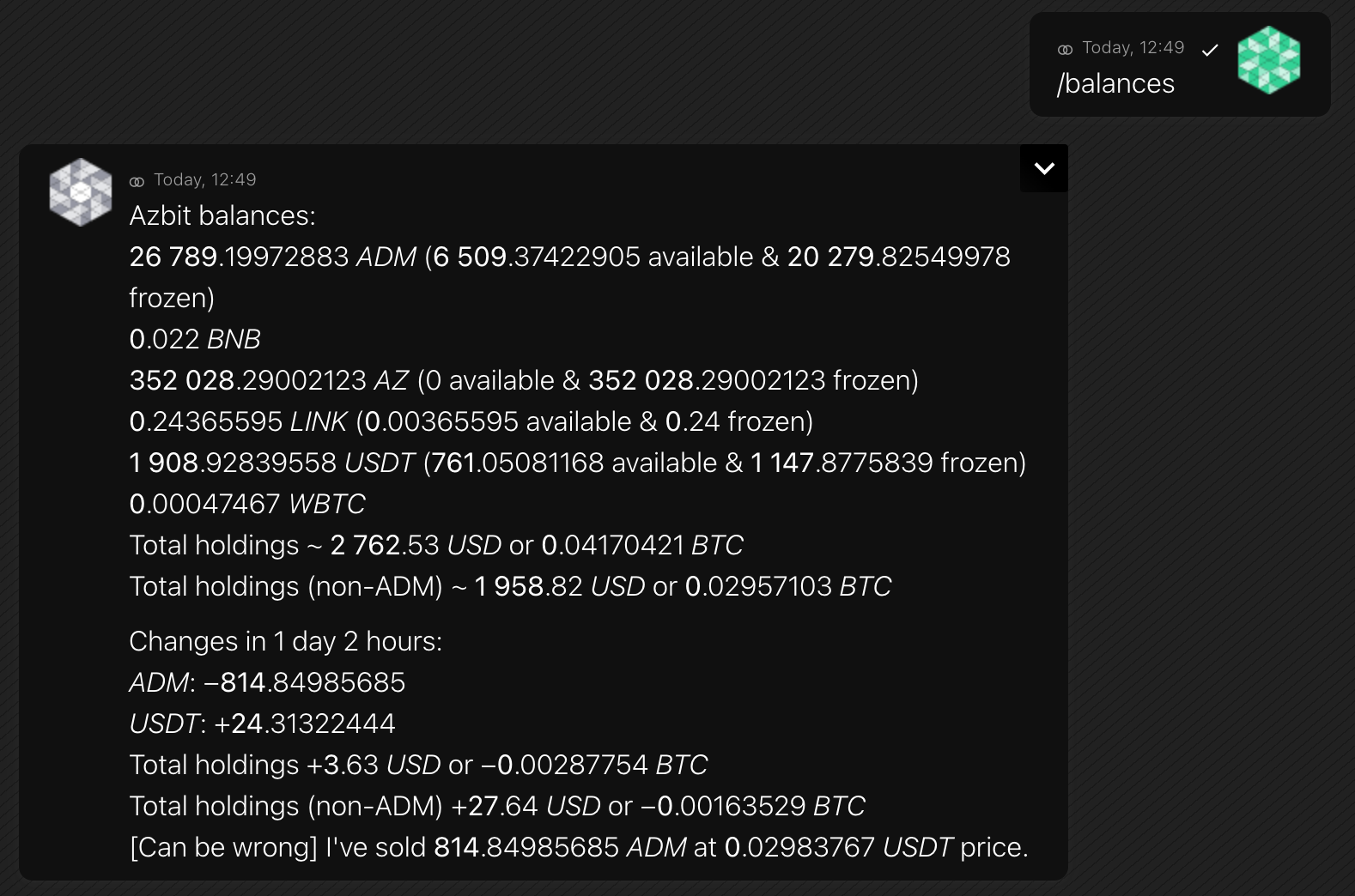
The list includes non-empty balances, estimates in USD and BTC, and changes from the last request.
The bot analyzes buys and sells on the mm pair, but the changes calculation may be incorrect, as it is based on a balances report, but not a trade history, and does not take into account deposits and withdrawals.
Format
/balancesExample
-
/balances
Premium bot version may include the additional option for the
/balancescommand, which specify account type. Each exchange names types in its way, e.g.,exchange,margin,funding.To get balances on all account types, set
full.The command helps when you want to
/transferfunds from one account type to another.Format
/balances [type]Examples
/balances funding/balances full -
/orders
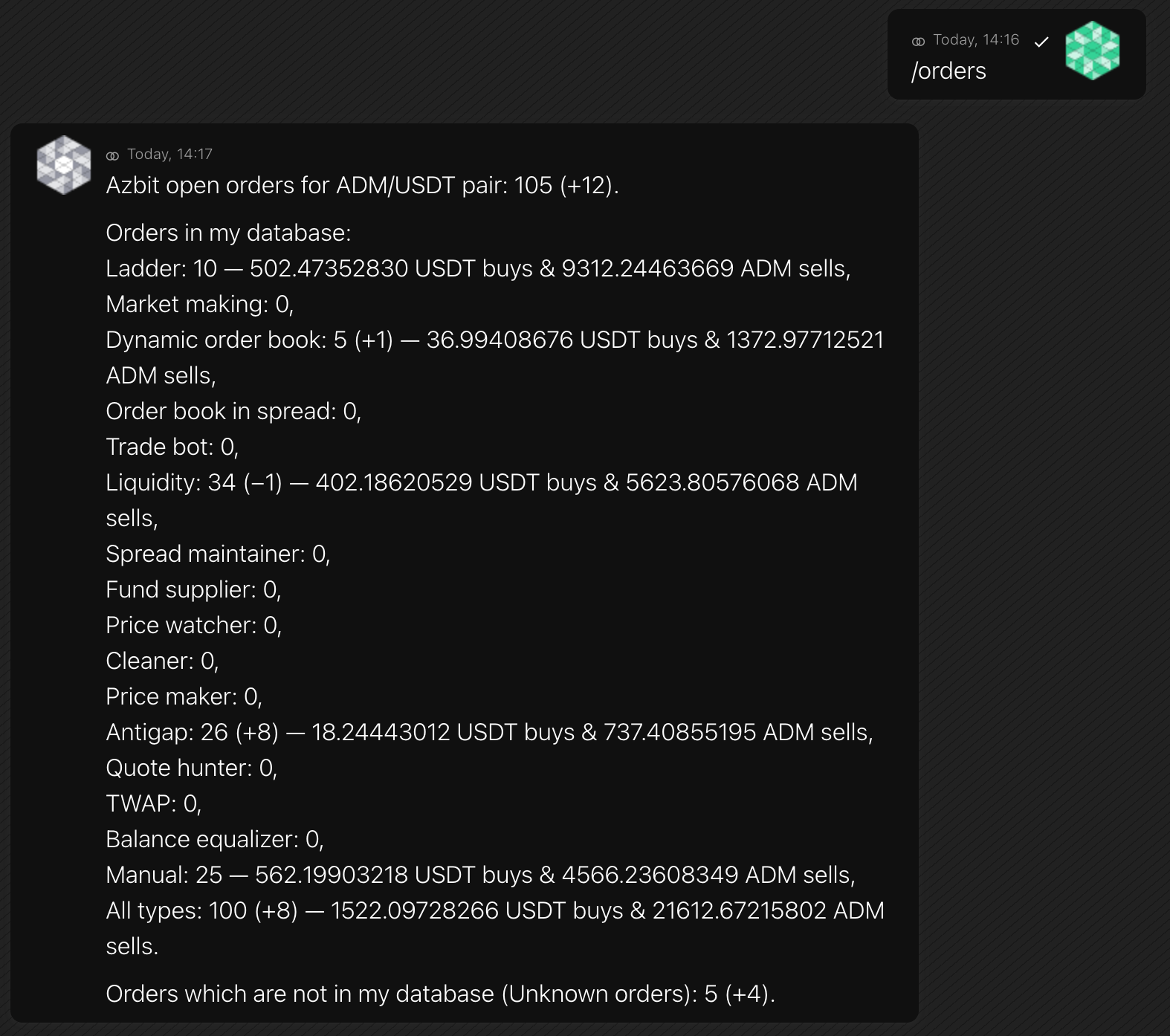
The bot shows the total number of open orders on an exchange for a trading pair and orders number by type.
For a reference only. Total orders in the bot storage may differ from real orders number on exchange. E.g., when you’ve placed orders aside from the bot; or in case of some open/close API requests failed. The bot shows the difference as unknown (unk) orders.
Next
/ordersrequests will also show changes relative to previous data.Order types:
- Ladder (ld) Liquidity grid
- Trader (t) Trading volume orders
- Dynamic order book (ob) Orders to build order book dynamically
- Order book in spread (obs) Helper orders for the order book builder
- Liquidity (liq) Liquidity and spread support
- Spread maintainer (sm) Spread support orders after a price change
- Fund supplier (fs) Auto-replenish orders
- Price watcher (pw) Orders of a module that watches and follows a token price
- Cleaner (cl) Anti-cheat
- Price maker (pm) Maker of a price in a specific time
- Antigap (ag) Order book with no gaps
- Quote hunter (qh) Token sell order
- TWAP (tw) Order of a time-weighted average price
- Balance equalizer (be) Orders to make balances equal
- Order notifier (on) Monitoring-only, no orders placed
- Manual (man) Manually placed orders
- Unknown (unk) Orders which are not in the bot’s database
Format
/orders [trading pair] [type] {full}A bot will show orders on the mm pair if you omit a trading pair.
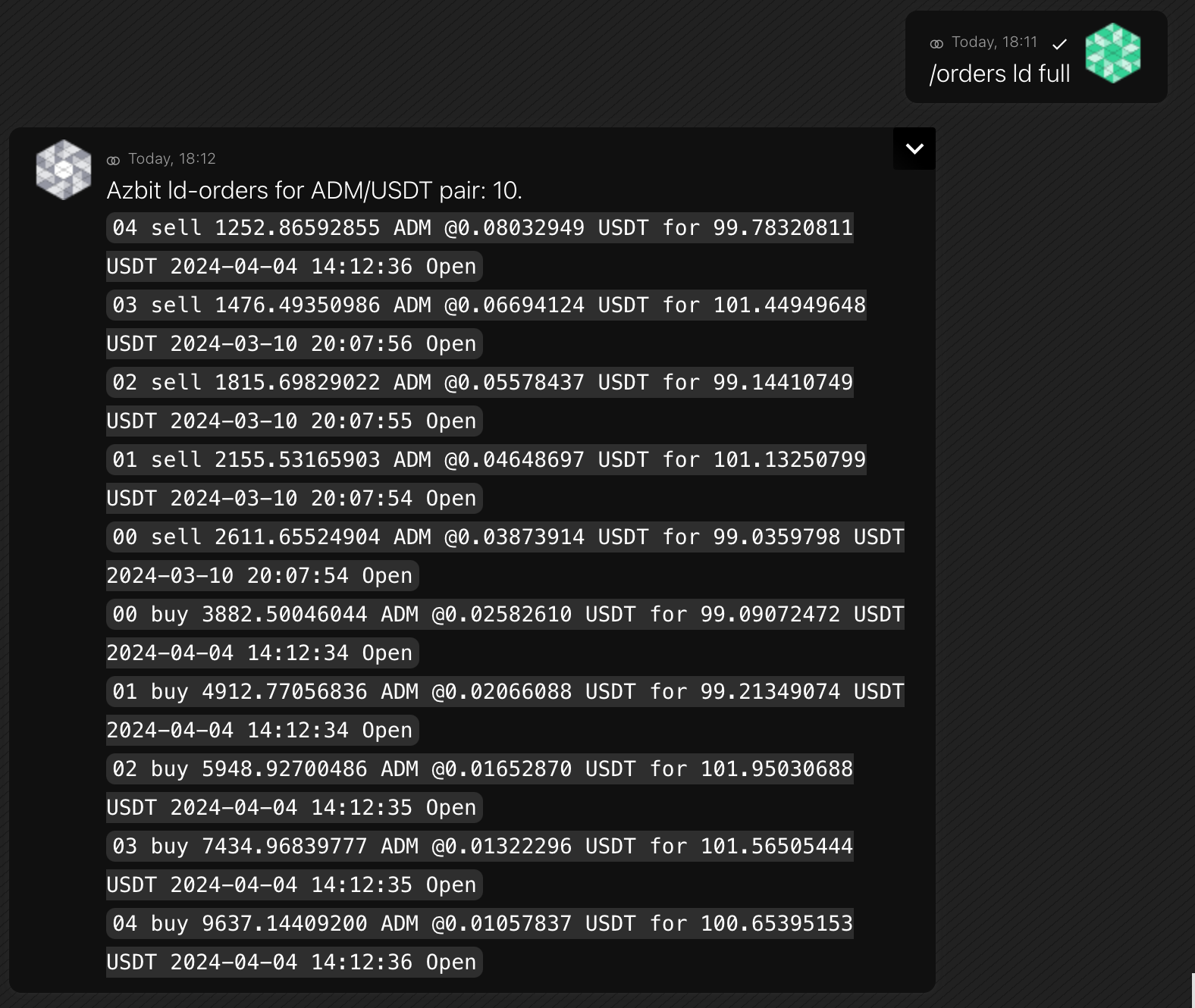
You can request the list of orders of a particular
type, with or withoutfullinformation.Examples
- Ladder (ld) Liquidity grid
-
/cancel
Cancels a single open order on the exchange by its ID.
Format
/cancel [pair] {id}If you omit a trading pair, the bot uses the MM pair.
-
/order
Returns detailed information about an order directly from the exchange API.
Format
/order [pair] {id} -
/stats
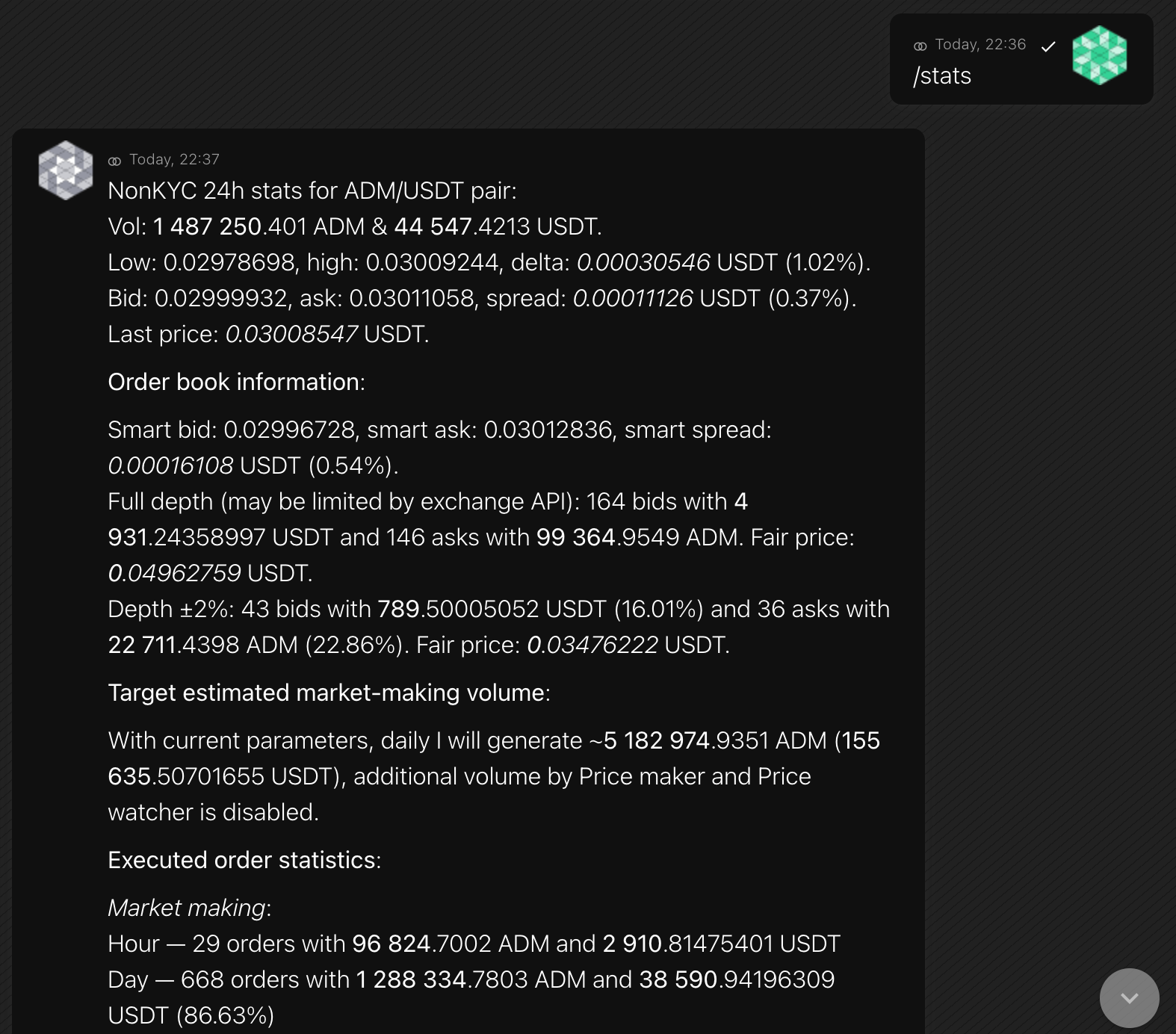
Information includes general trading and market-making stats for a day, a month, and all the time.
Note: If the bot has a work history of several days, it may process a request for several minutes.
Format
/stats [trading pair]Example
-
/pair
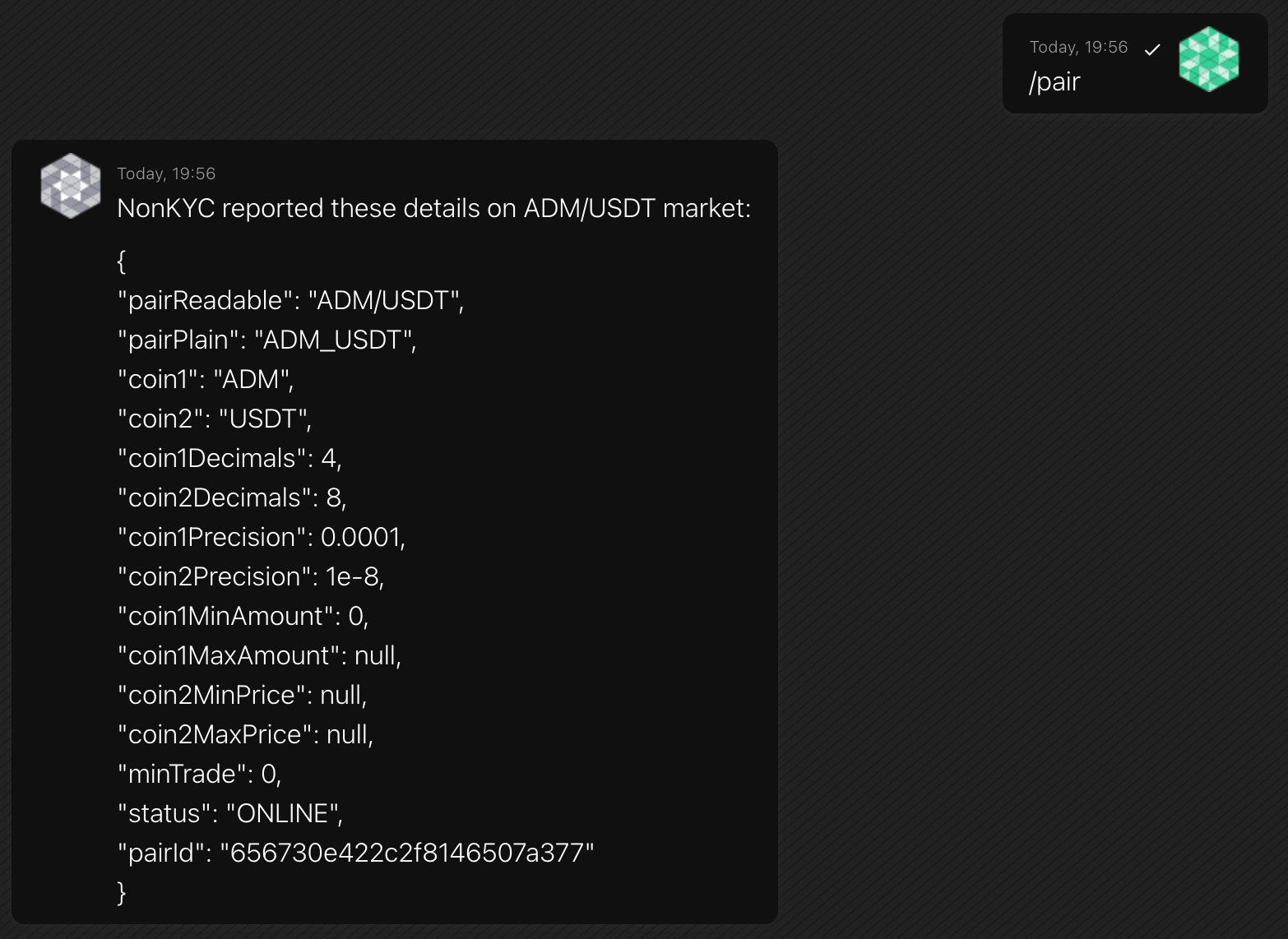
Information includes name, precision, minimum trading amount, status.
Format
/pair [pair]Example
-
/orderbook
Shows a snapshot of the order book for a trading pair or perpetual contract.
Format
/orderbook [pair] [depth 1-30]Default depth is 10.
-
/trades
Shows recent trades for a trading pair.
Format
/trades [pair] [count]Default count is 10 (max 100).
-
/ticker
Shows ticker data for a spot pair or perpetual contract.
Format
/ticker [pair] -
/account
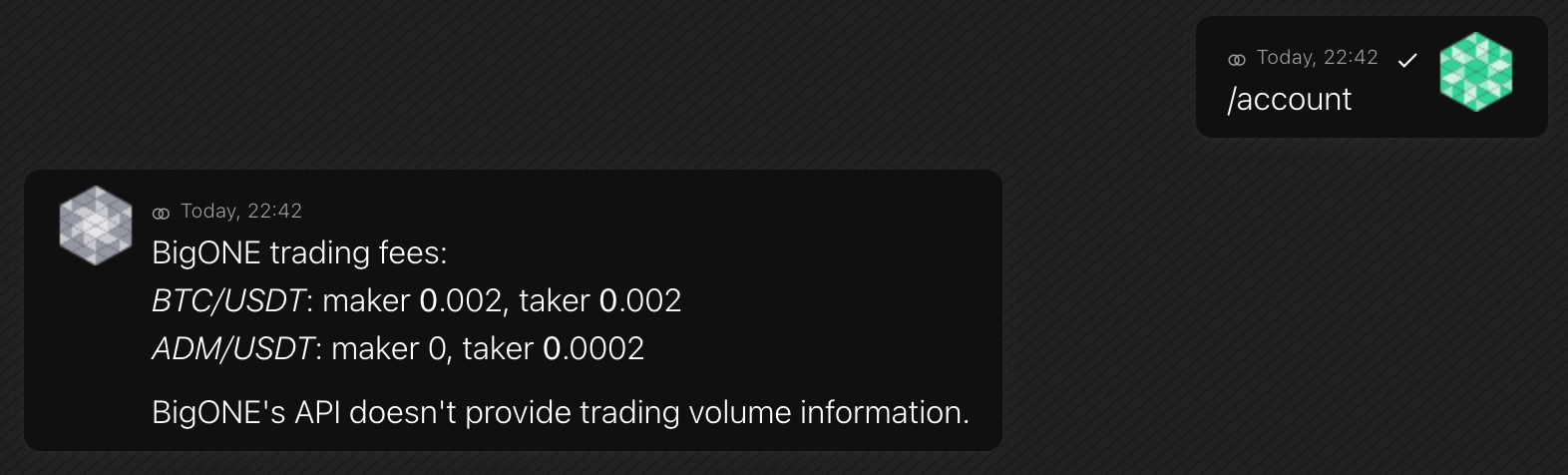
Information includes trading fees and monthly trading volume.
Format
/accountExample
-
/info
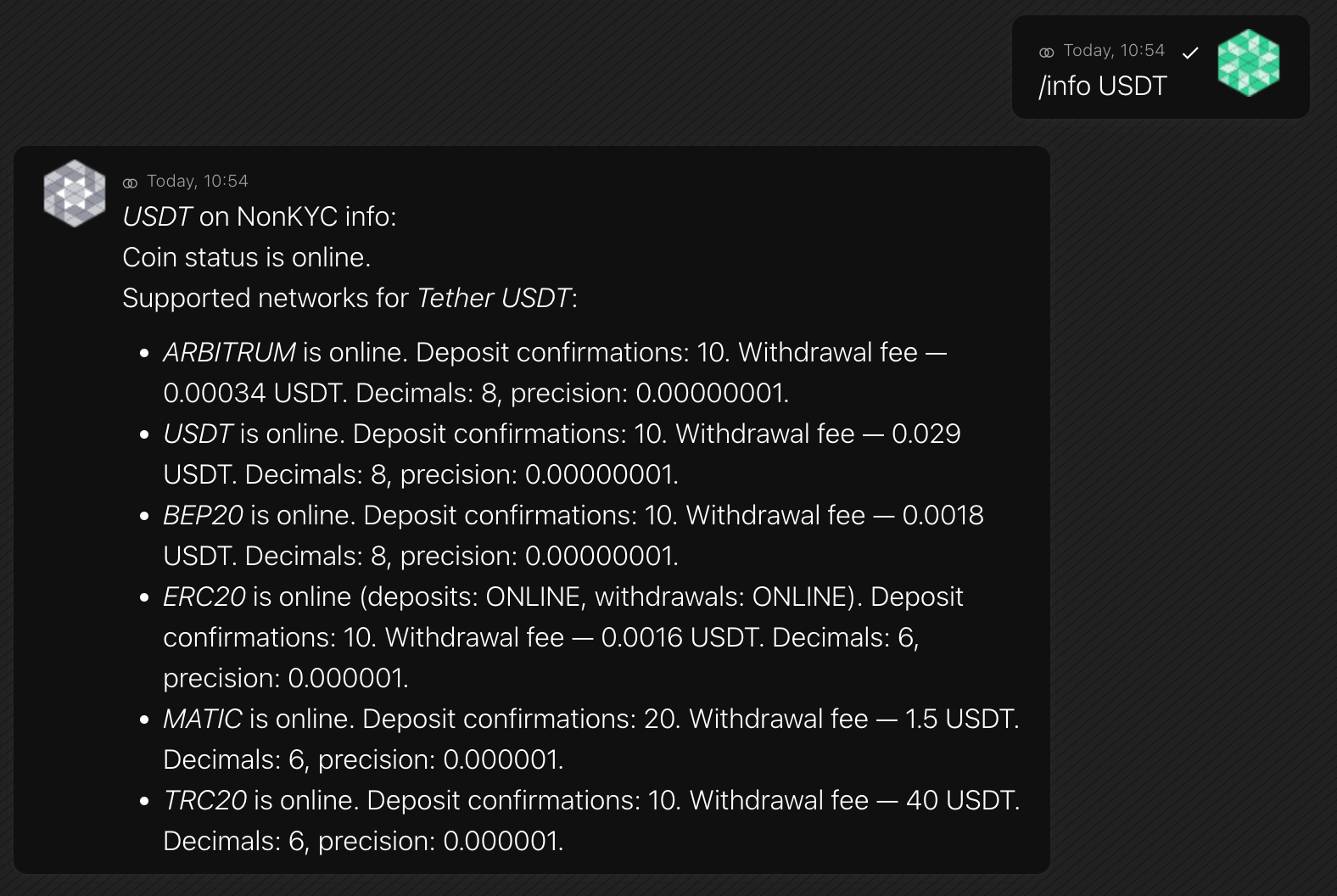
Information includes withdrawal fees, precision, status.
Format
/info [coin]A bot will show info on the mm coin if you omit a parameter.
Example
-
/rates
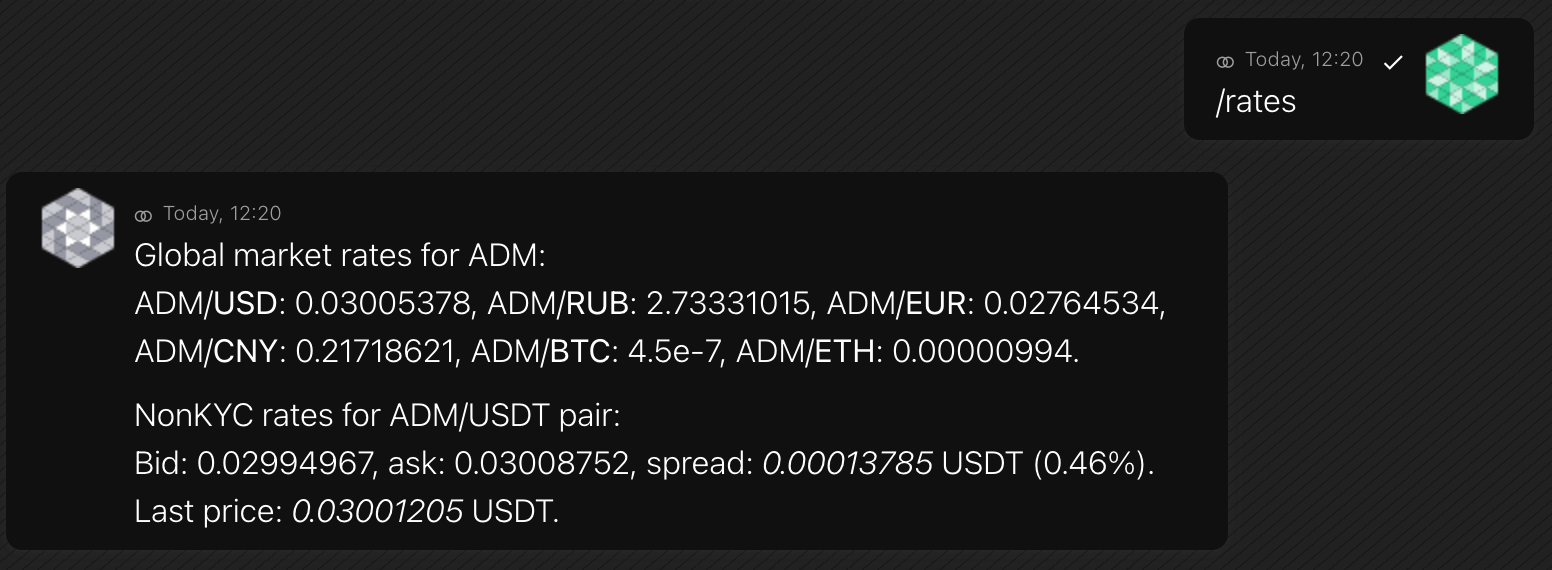
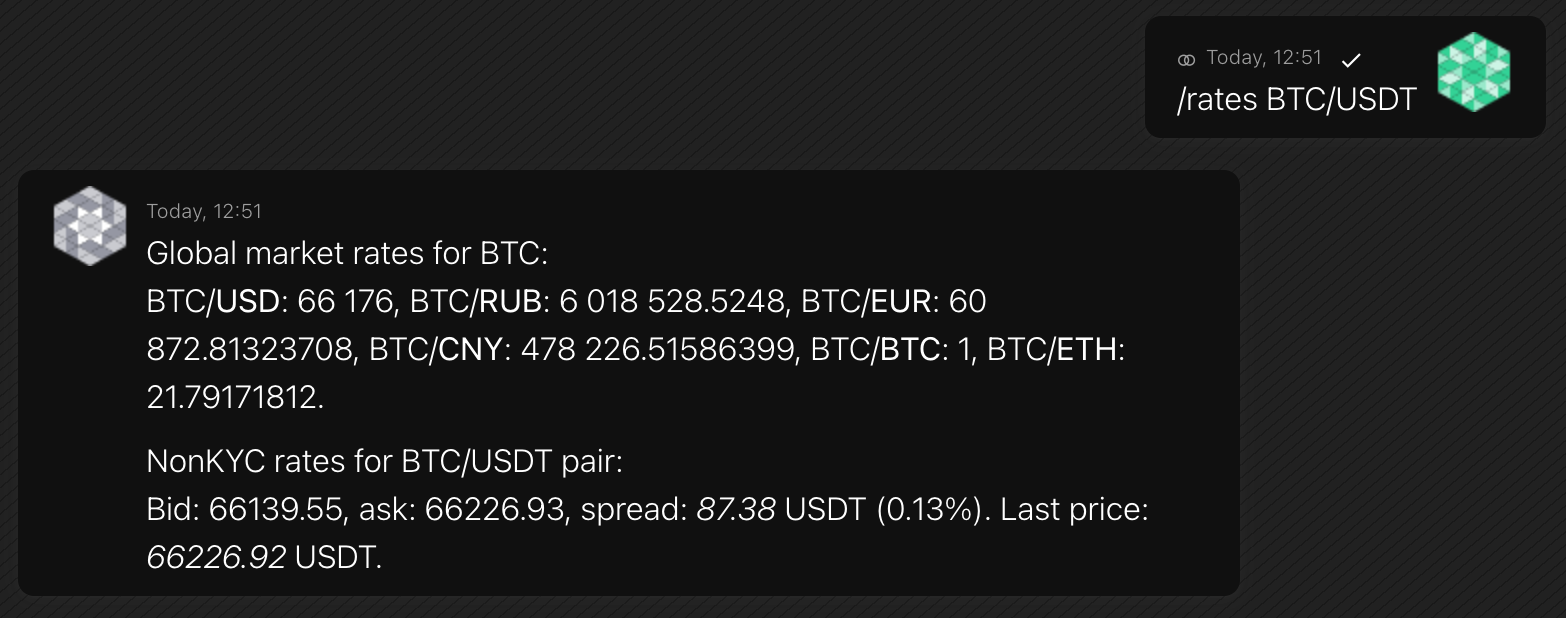
The bot receives coin rates from two sources: Currencyinfo and an exchange. Rate information from an exchange includes bid, ask and spread.
Currencyinfo is an ADAMANT currency rates provider, and it’s set in the config file (default to info.adamant.im). You can run your Currencyinfo to include data for your token. Other commands, such as
/balances, use Currencyinfo to estimate fund value.Format
/rates [coin or pair]Example
-
/calc
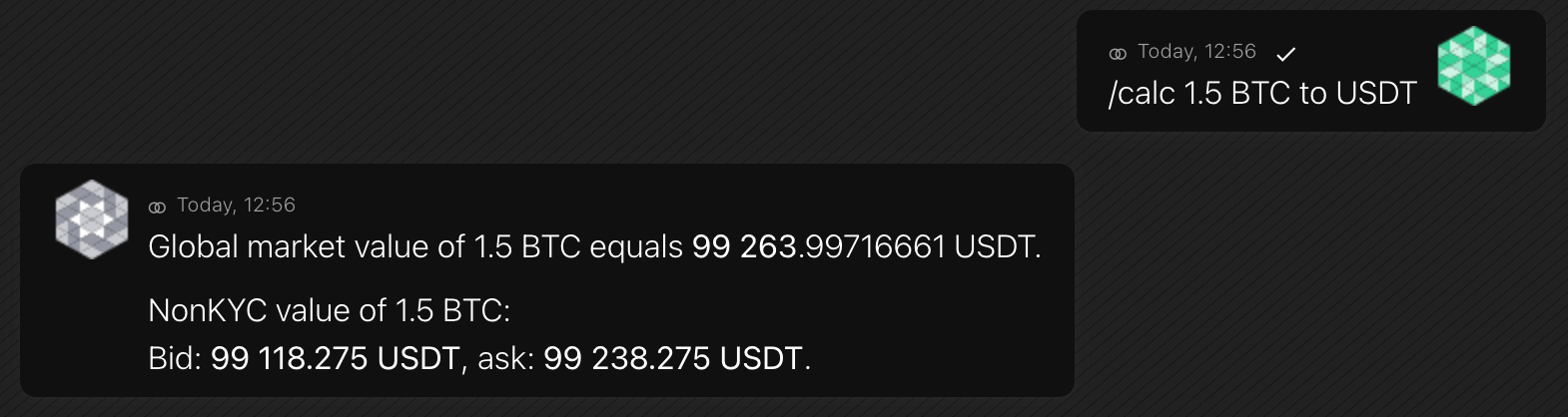
The bot receives coin rates from two sources: Currencyinfo and an exchange.
Currencyinfo is an ADAMANT currency rates provider, and it’s set in the config file (default to info.adamant.im). You can run your Currencyinfo to include data for your token. Other commands, such as
/balances, use Currencyinfo to estimate fund value.Format
/calc [amount] [coin1] to [coin2]Example
-
/amount
The software places orders with random amounts in a range you set. It refers to most of the functions but primarily to mm volume orders.
You set the min–max range for a single mm-order in the mm token.
To enlarge daily volume, increase this parameter.
Format
/amount [min-max] COIN1 [ob=50%]Optional
ob=50%limits how much of a trade can execute in the order book (the rest is a taker trade).Example
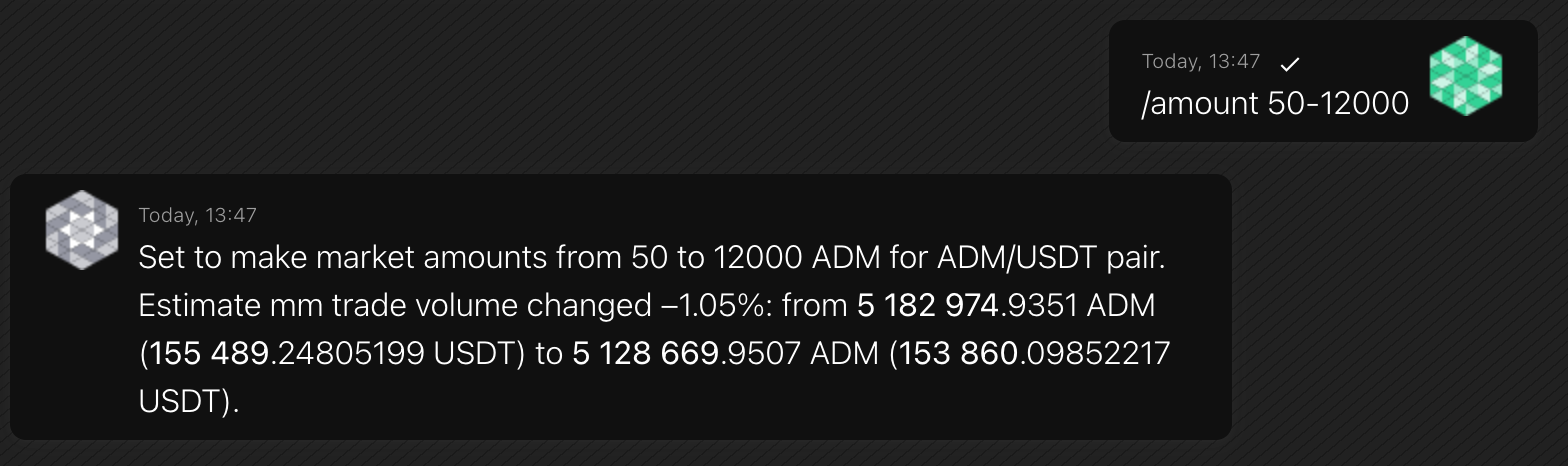
The bot will place each mm order with an amount between 50 and 12,000 ADM and the same USDT equivalent.
-
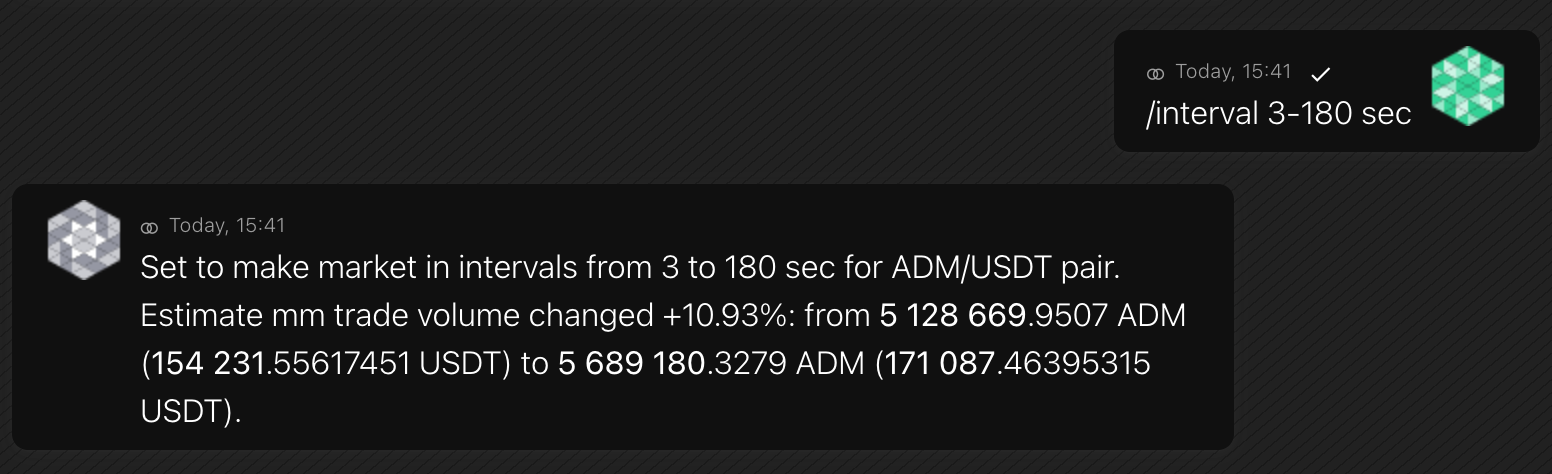
/interval
Tell the bot how often to trade to make a trading volume with this command.
Don’t set a lower bound of the interval below 3 sec — the API will probably not handle it. Don’t trade too often — an exchange’s API has limits, and this affects other requests, like dynamic order book building. 3–60 sec is good, while 3–5 sec is bad.
Format
/interval [min-max] [unit]Example
-
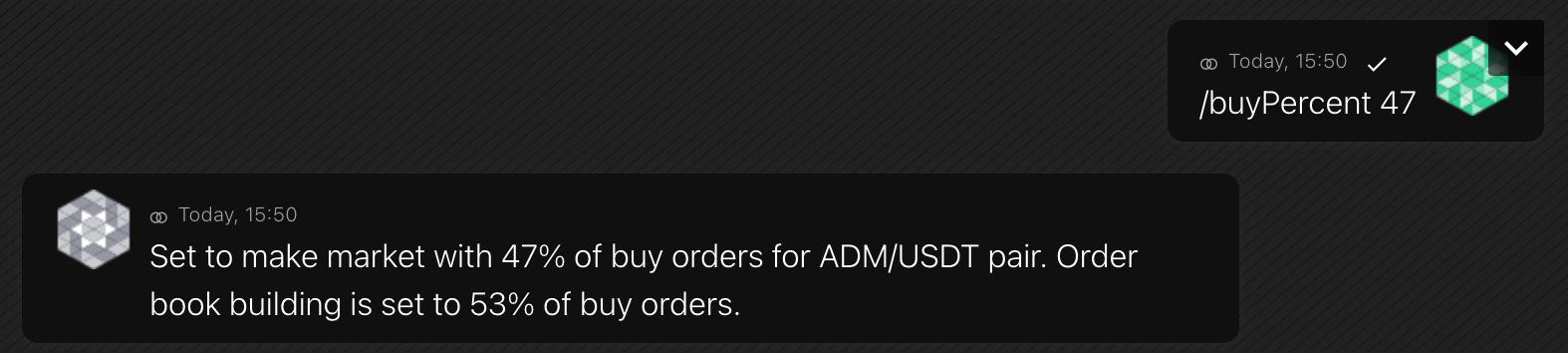
/buyPercent
Increasing this value will increase the number of token purchases and decrease the number of sales in the trading history.
Format
/buyPercent [value]Example
-
/enable t
Enables the Trader module that makes trading volume on the MM pair. Set a trading policy, amount range, and time interval between trades.
Format
/enable t {policy} [min-max] COIN1 [min-max] [unit] [ob=50%]Policies
- spread — trade in the spread only. The bot places orders between bid and ask and matches them itself. If the spread is below the minimum, it notifies you and pauses market-making until the spread returns. Lower risk of balance loss, but there may be no-trade intervals when there is no spread.
- orderbook — trade from the order book only. The bot buys and sells against the book. Trading looks realistic, but the risk of balance loss is higher because the bot may trade with other users.
- optimal — default policy. If liquidity is enabled, the bot trades both in the spread and from the order book. If liquidity is disabled, it uses the
spreadpolicy. - depth — the bot does not create trading volume but continues other tasks, such as maintaining spread and liquidity and filling the order book.
Example
/enable t optimal 1-10 ADM 3-60 secs -
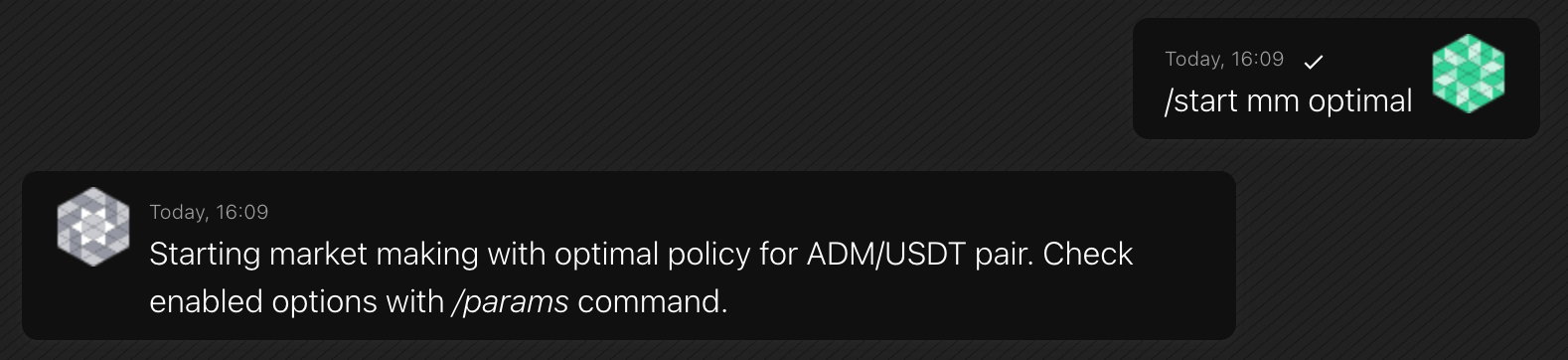
/start
Starts (or resumes) market-making and runs all currently enabled bot features and modules.
The command accepts no parameters. Trading policy, amounts, intervals, and features are configured separately with
/enable t,/amount,/interval, and other/enablecommands before you start.You can change parameters and enable or disable features while the bot is running — you do not need to stop it first. For example, to increase daily volume, raise
/amountand lower/interval.If market-making is already active, the bot reports which features are enabled and does not restart them.
Format
/startExample
-
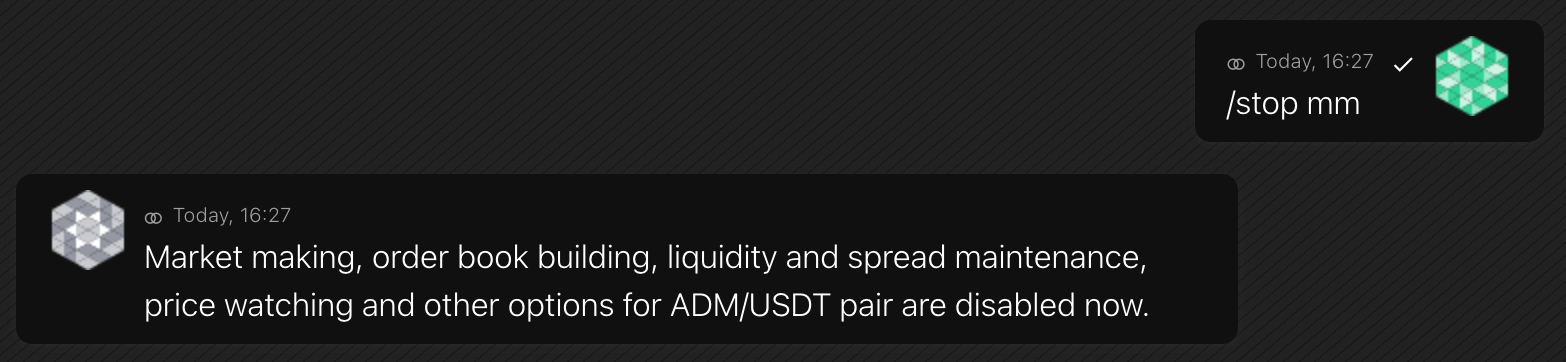
/stop
Pauses market-making and all enabled bot modules. Open orders stay on the exchange — the command does not cancel them. Use
/clear allto cancel orders (including those placed outside the bot).The command accepts no parameters and ignores any you pass. Resume later with the same features and parameters using
/start.Format
/stopExample
-
/features
Shows which market-making features are currently enabled. With the
listoption, shows all features with on/off state.Format
/features [list] -
/enable ob
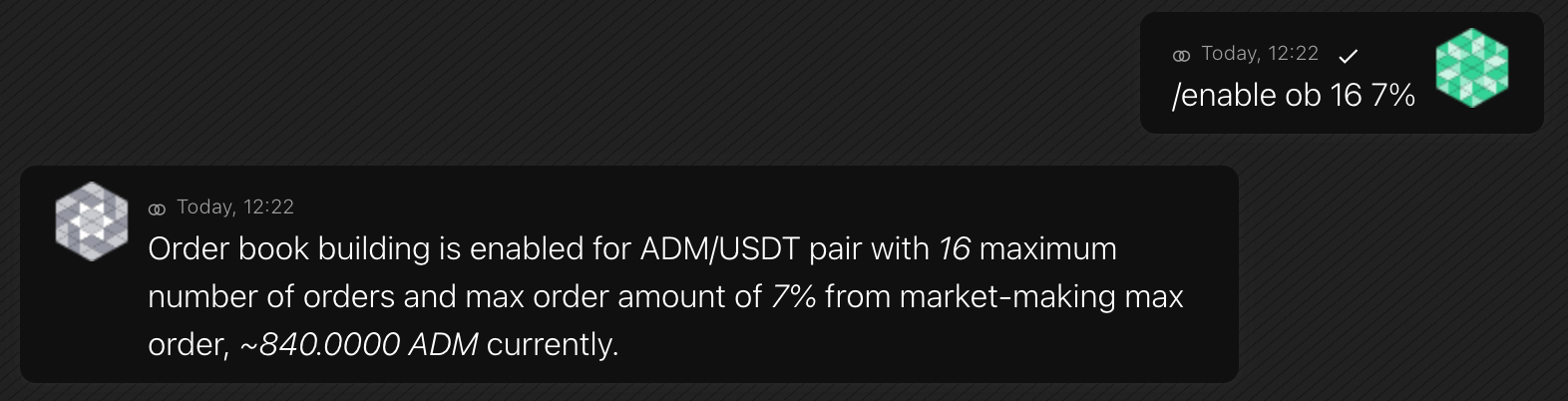
This feature brings the order book to life by constantly placing and removing orders. In the web interface, it looks as if many traders on the trading pair are actively placing positions.
Format
/enable ob [max-ob-orders] [percent]Value
max-ob-orderstells the bot what the maximum number of “dynamic order book building” (ob) orders at a time.The
percentsets the maximum ob-order amount relative to the high bound of mm-order amount, which is set with the/amountcommand. This parameter helps to lock only a few balances in the order book.Example
-
/enable liq
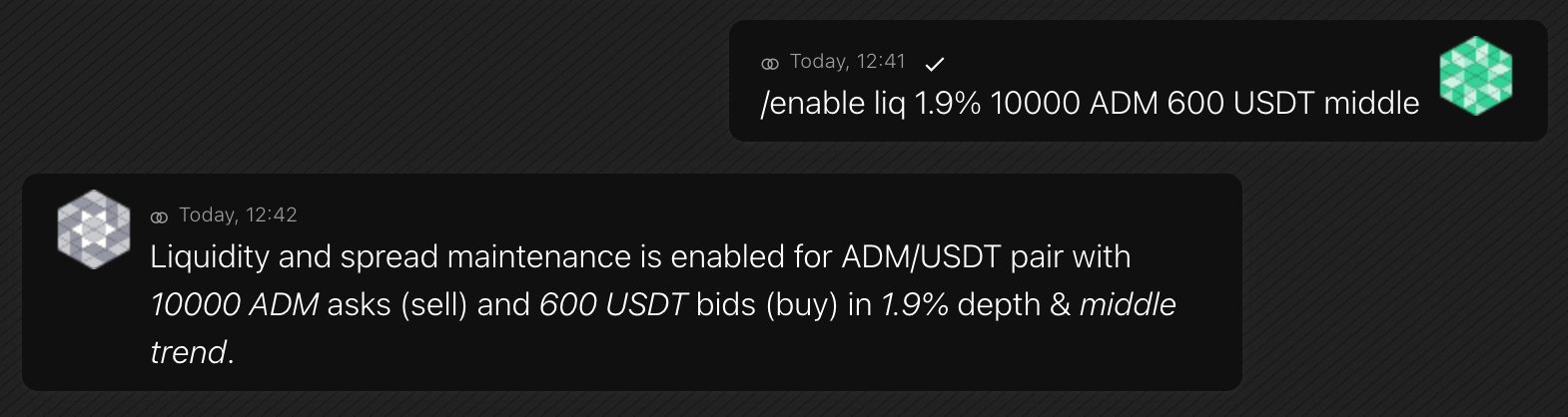
The bot will place several buy and sell liquidity (liq) orders in the order books close to the spread. The spread will be about the
spread-percentvalue you set as an option. Additionally, you set thetrend, describing where to place liquidity orders relative to the current bid–ask.- Middle — a bot places orders in the middle of the spread, and the token price tends to be stable
- Uptrend — a bot places orders closer to the higher bound of the spread, and the token price will tend to grow
- Downtrend — a bot places orders closer to the lower bound of the spread, and the token price will tend to decrease
Note: If some user matches the bots’ liq-orders, the bot will place new ones to maintain the spread and liquidity. This means if users, for example, sell a lot of TOKEN, the bot will buy all of them with USDT at the current price and can run out of USDT balance. To change this behavior, refer to the Safe Liquidity premium feature.
Format
/enable liq [spread-percent] [amount] TOKEN [amount] QUOTE [trend]The basic bot version only allows setting the high bound of
spread-percent. The lower bound is always 0.Example
-
/enable liq
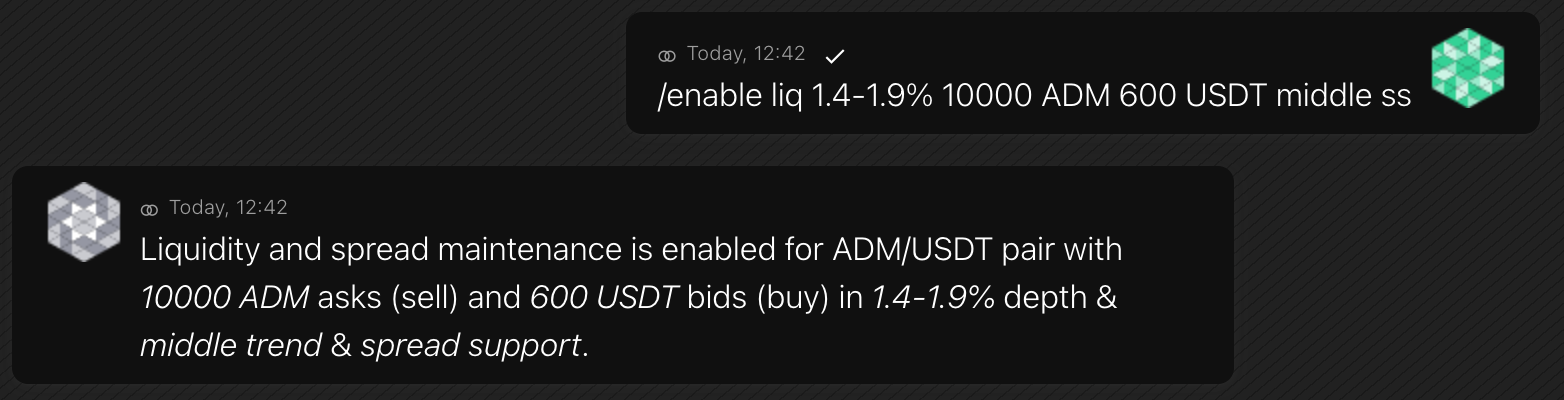
With the premium Safe Liquidity feature, you can set the lower bound of
spread-percentand specify additionalssoption.Setting the lower bound of
spread-percentallows to place liquidity a little further away from the spread. For example, at a distance of 1–2%. Thus, liquidity will not be available at the current price, but integrators like Coinmarketcap will still show ±2% liquidity.The
ssoption will enable spread support to a minimal value (e.g., 0.1%) with several low-volume orders.Format
/enable liq [spread-percent] [amount] TOKEN [amount] QUOTE [trend] {ss}Example
-
/enable pw
With the help of the Price Watcher module, you can set a bot to follow a static price range or a price on another exchange. The bot will avoid buying high and selling low, verifying that the bot modules place orders at a suitable price.
Additionally, if a price moves out of the safe range, a bot can set it back by buying or selling tokens with the
filloption enabled.The
preventoption works in another way: it disallows the bot modules, such as liquidity, to place orders out of the Price Watcher range, prohibiting buying high and selling low. In thepreventmode, the bot isn’t forced to set a price back to the range but instead offers a safe price range to other modules.Format (static price range)
/enable pw [low-high] COIN [action]/enable pw [price] COIN [deviation] [action]If you choose a static range, the feature controls a token’s price in the low–high range. You can set a price range in any currency; the bot will convert it into the trading pair's currency.
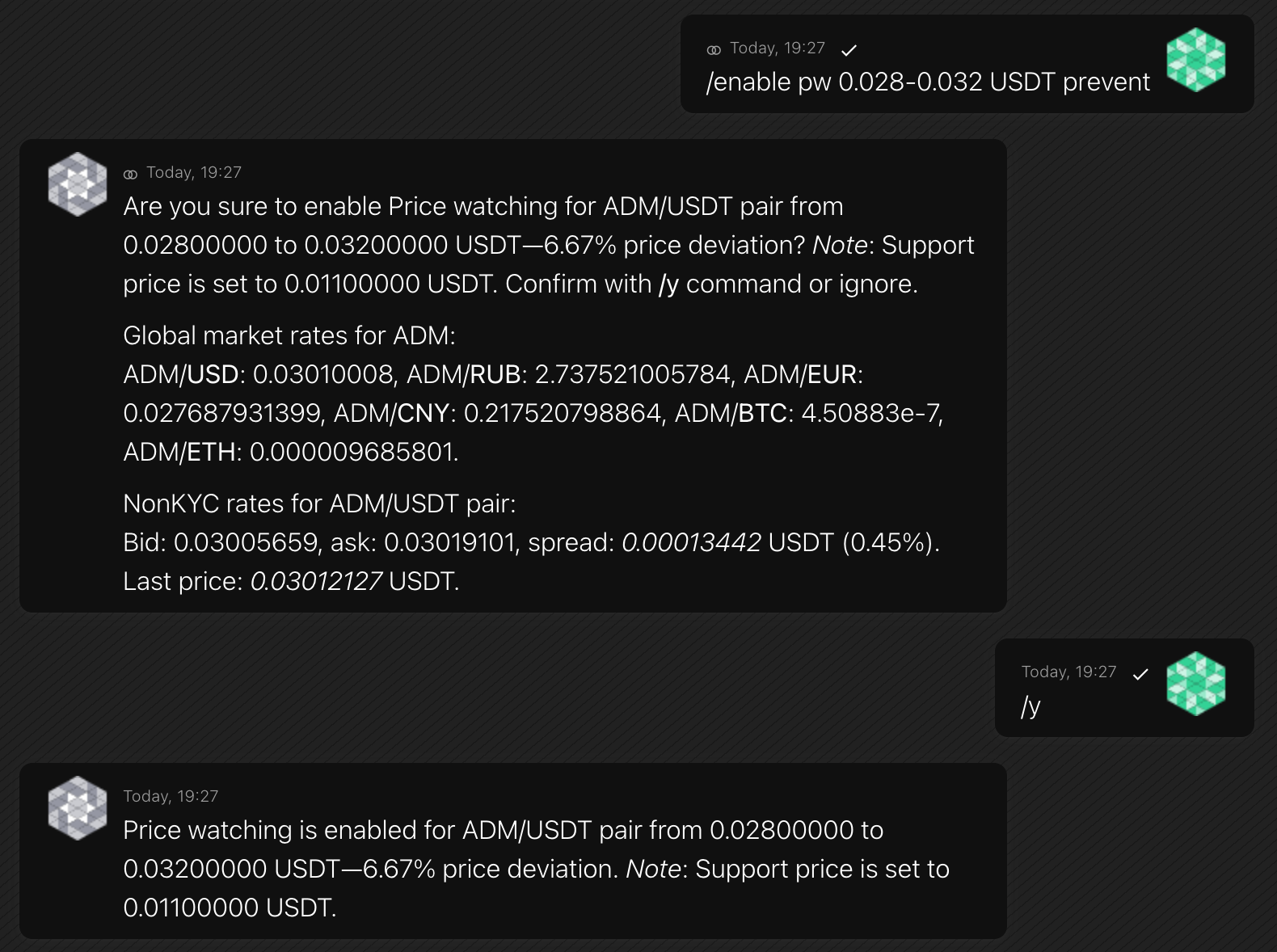
Example (static price range)
/enable pw 0.028-0.032 USDT prevent/enable pw 0.03 USDT 6.7% preventThe command set the bot to place buy-orders at prices below 0.032 USDT and sell-orders at prices above 0.028 USDT; the 0.028–0.032 range is safe both for bids and asks.
Format (following another exchange)
/enable pw [pair@exchange] [deviation] [deviation-policy] [action]You can also command the bot to follow the price on another exchange. There might be different reasons for such behavior; the most common are following a price on an exchange with the most liquidity, and preventing arbitrage when you run bots on several exchanges.
The
deviationoption is an allowed price deviation, anddeviation-policyis a price control policy. When the bot receives a price range from another trading pair, it will use plain bid and ask with thestrictpolicy, or estimate liquidity-supported prices with thesmartpolicy.For example, with such an order book,
strictgives the 0.0122–0.0128 range, andsmartgives the 0.0121–0.0132 range: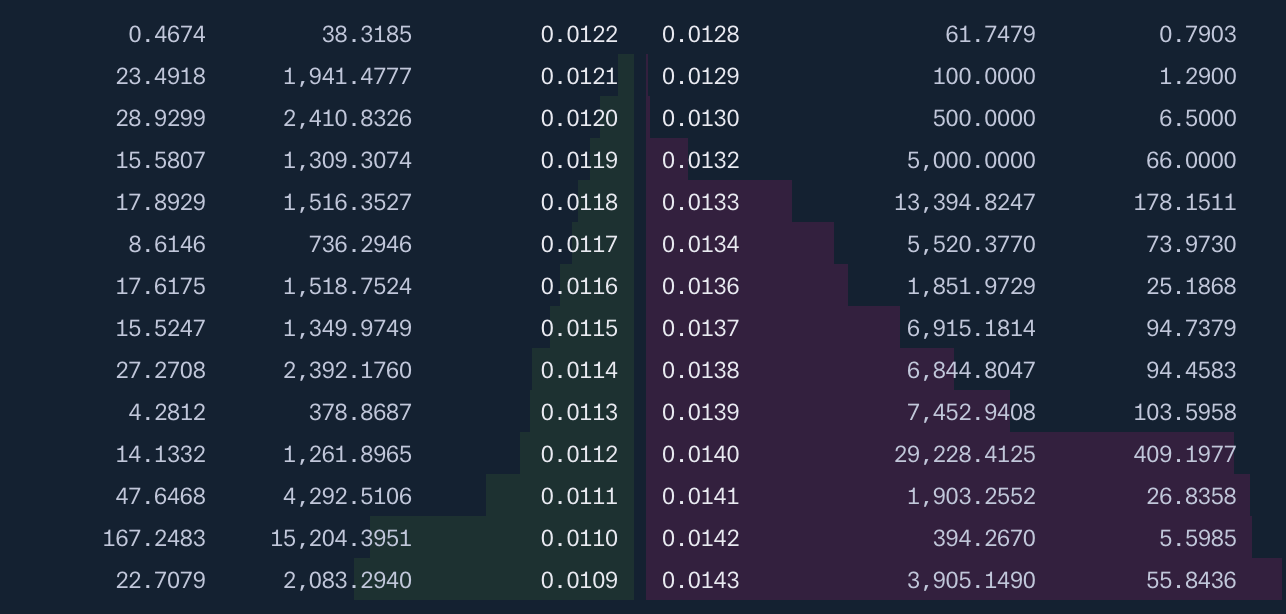
Example (following another exchange)
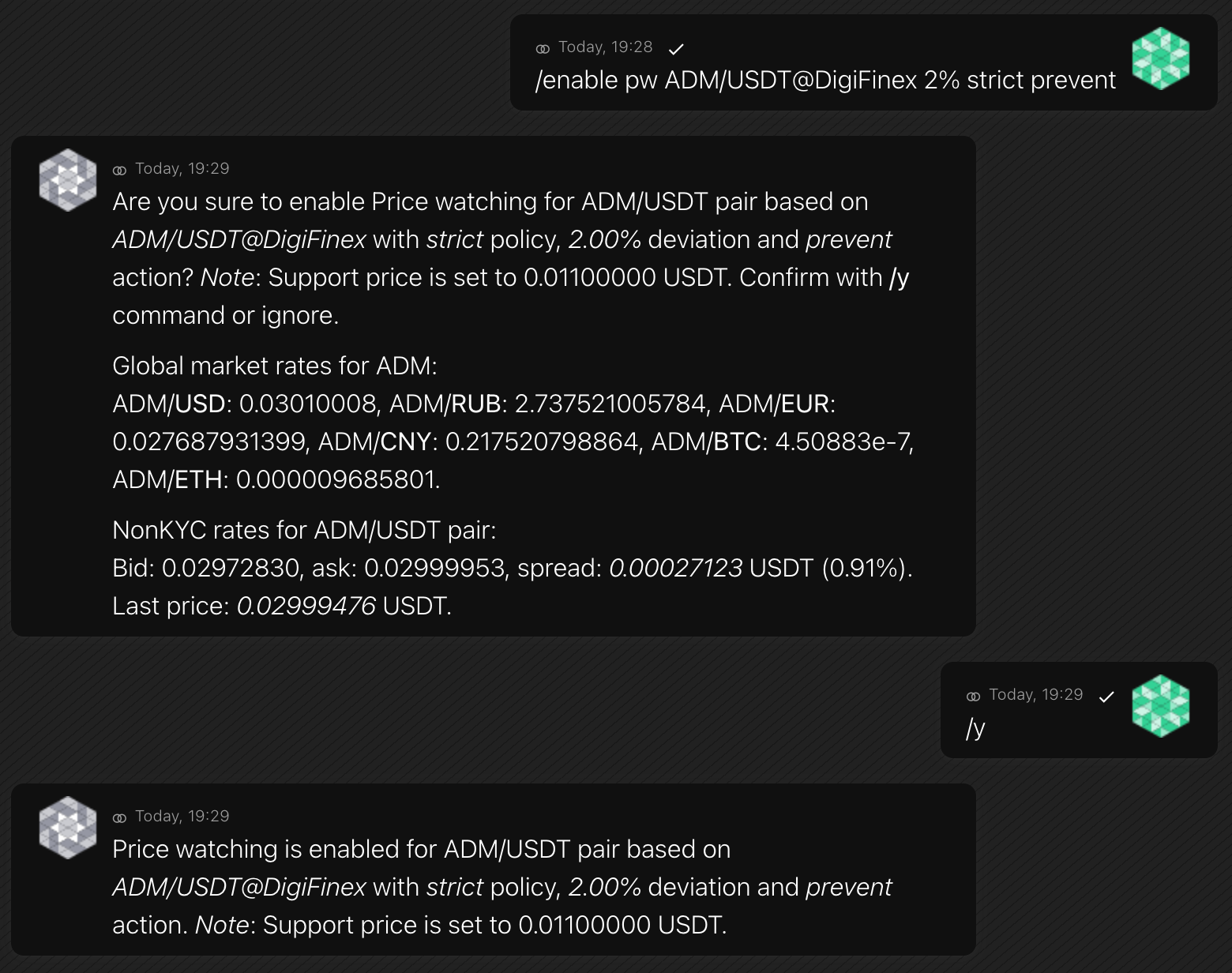
It’s a good practice to set the leading trading pair with the most liquidity (for example, ADM/USDT@DigiFinex) in a numerical range and target the rest of the bots to the leading trading pair:
/enable pw ADM/USDT@DigiFinex 2% strict preventWith this command, when ADM/USDT@DigiFinex price changes, the bot on the current exchange will also follow the price update.
-
/enable bw
Stores current balances as a reference snapshot and continuously compares them with live balances. If the quote coin balance or normalized trading-coin value drops below configurable thresholds, the bot triggers an emergency stop.
For the feature description, refer to Balance watcher.
Format
/enable bwThresholds are set in the bot config file (
balance_watchersection). -
/enable sp
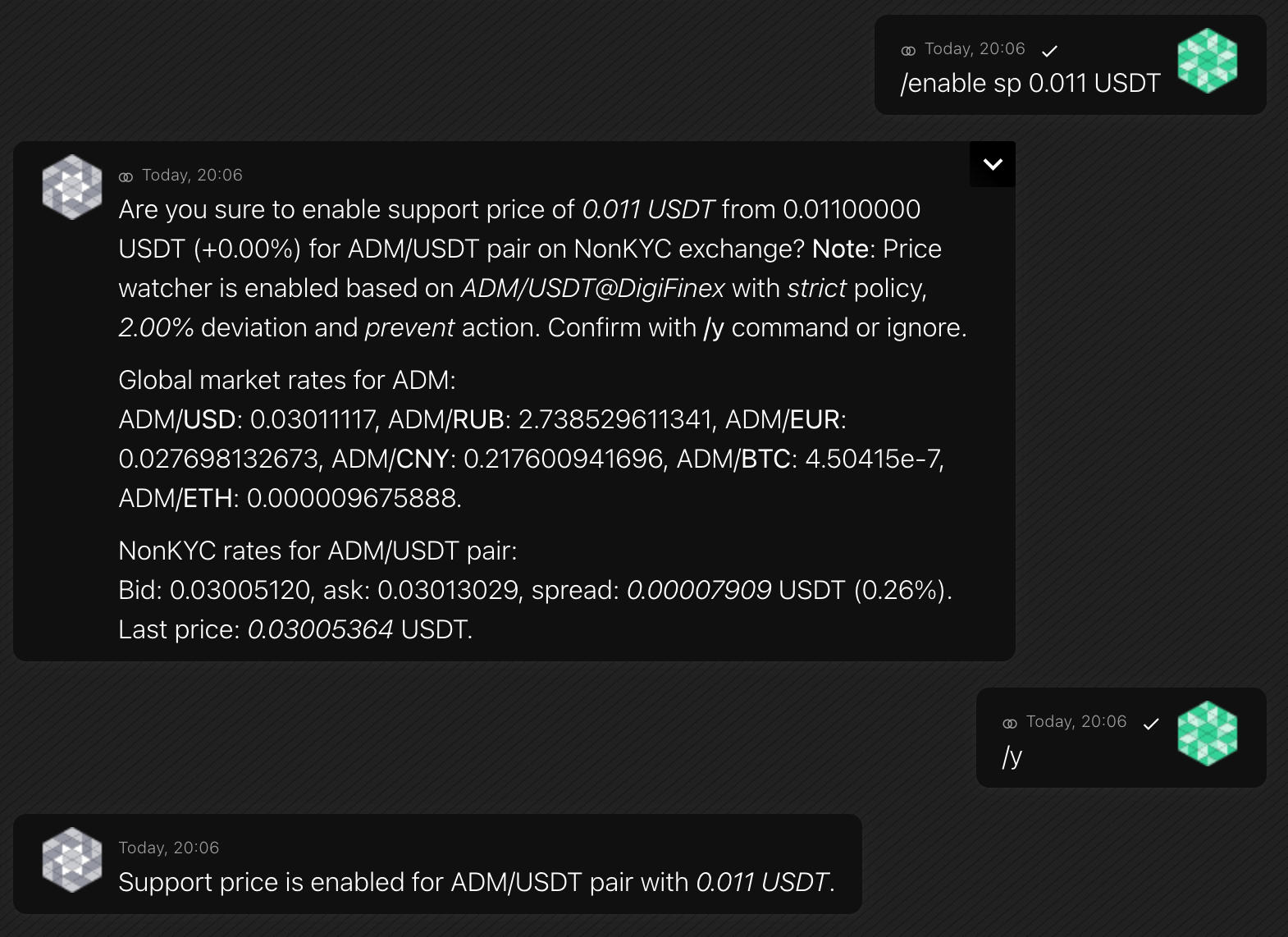
You can set a price that the bot will support with all its might, even if it must cancel all orders.
The function can work in addition to the Price Watcher.
For example, you set the Price Watcher in the range of 1.0–1.1 USDT in the
preventmode and a support price of 0.5 USDT. If the token price drops to 0.7 USDT, the bot will not actively restore the price, but if it drops to 0.45 USDT, the bot will use all resources to restore it to 0.5 USDT.Format
/enable sp [price] QUOTEExample
-
/enable ag
To make order books look rich, the bot will analyze them and add orders between existing ones.
For example, in the visible part of the order book there are bids at prices of 1, 0.9, 0.4, 0.3, and 0.1 USDT. The bot will place orders at prices of ~0.8, 0.7, 0.5, and 0.2 USDT.
Format
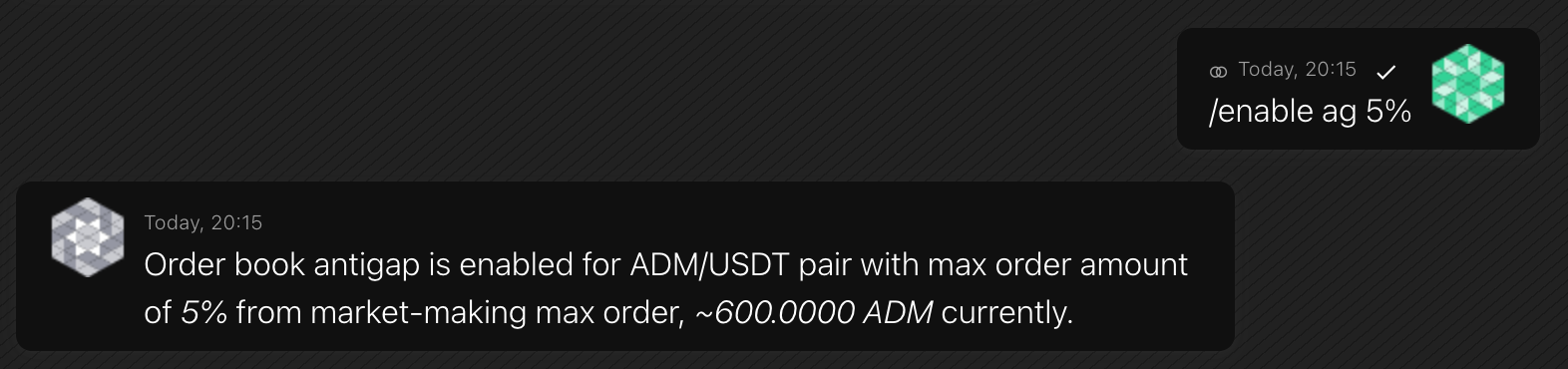
/enable ag [percent]The
percentsets the maximum ag-order amount relative to the high bound of mm-order amount, which is set with the/amountcommand. This parameter helps to lock only a few balances in the order book.Example
-
/enable cl
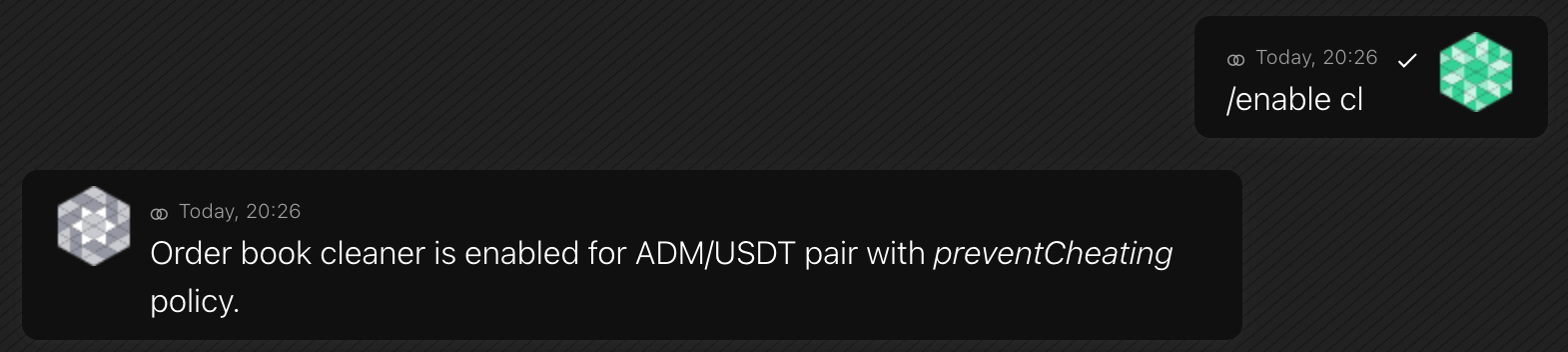
If there is little liquidity or the spread is large enough, traders can manipulate the price and drain the bot's balances. The Cleaner identifies and removes price manipulation orders by matching them.
For more information, refer to the Anti-cheat feature description.
Format
/enable cl [policy]You set the
policy, describing how to identify a price manipulation order and if to remove (match) it:- noSpread — remove any suspected order so that the bot can continue creating MM volume with the
spreadstrategy - smallSpread — same, but also make the spread larger to assist the Smooth price chart
- preventCheating — the default policy. Remove any order if it’s considered as a price manipulation, plus noSpread
- takeAll — remove any suspected order. Not recommended.
Example
- noSpread — remove any suspected order so that the bot can continue creating MM volume with the
-
/enable vc
For the feature description, refer to the Volatility chart.
The feature will work when these conditions are met:
- The Price Watcher (pw) is set to a fixed range. Doesn't work with the pair@exchange source
- The Liquidity (liq) is enabled with a spread of less than 3%
- The Price maker is not in the process
Format
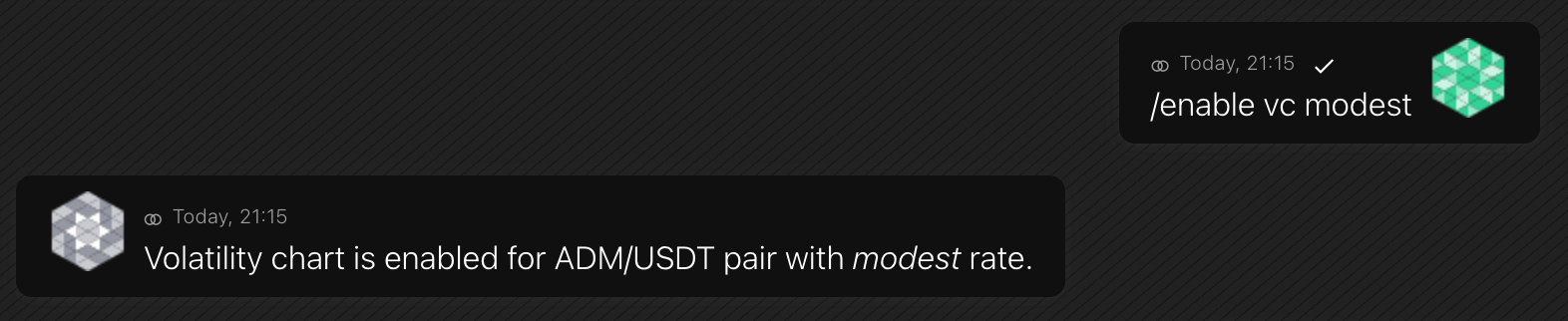
/enable vc [rate]You set the
rate, describing how often to change a price trend and its amplitude:- modest — don’t change a price trend often and use a lower amplitude
- dynamic — change a price trend often and use a higher amplitude
- normal — an average between modest and dynamic (default)
Example
-
/enable vv
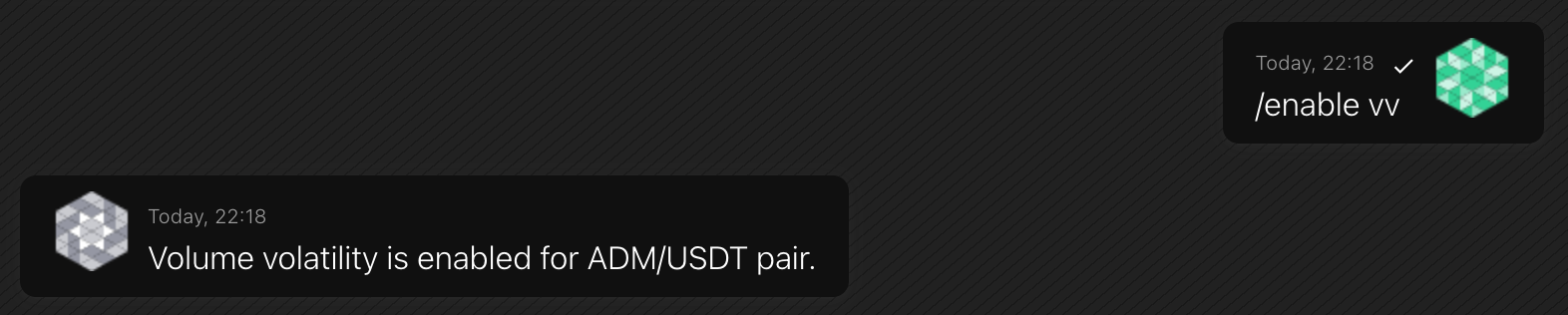
This function analyzes changes in a token's price, increases the trading volume during pumps and dumps, and reduces it in a stable period.
Format
/enable vvExample
-
/enable pmv
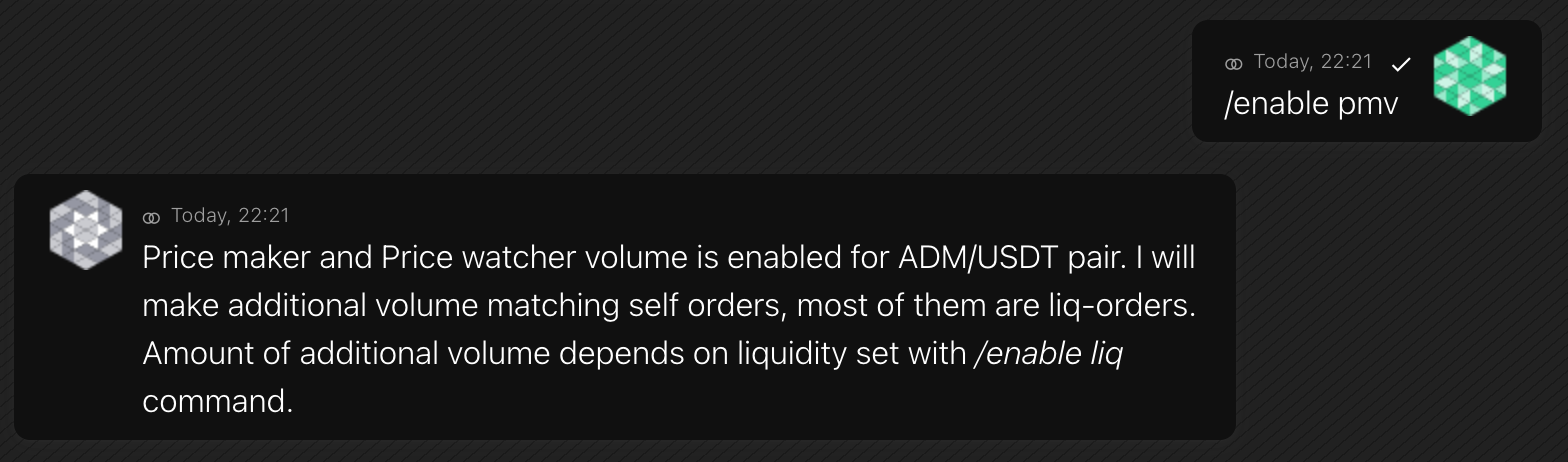
If the bot changes the price itself, it can buy back its own orders in the order book without canceling them, which also increases trading volume.
Format
/enable pmvExample
-
/enable fb
When trading two accounts, situations arise when the first account accumulates a token, the second accumulates USDT/BTC, and vice versa.
The bot will change the buy/sell ratio to balance coins automatically in order to prevent you from moving coins between accounts yourself.
Format
/enable vvExample

-
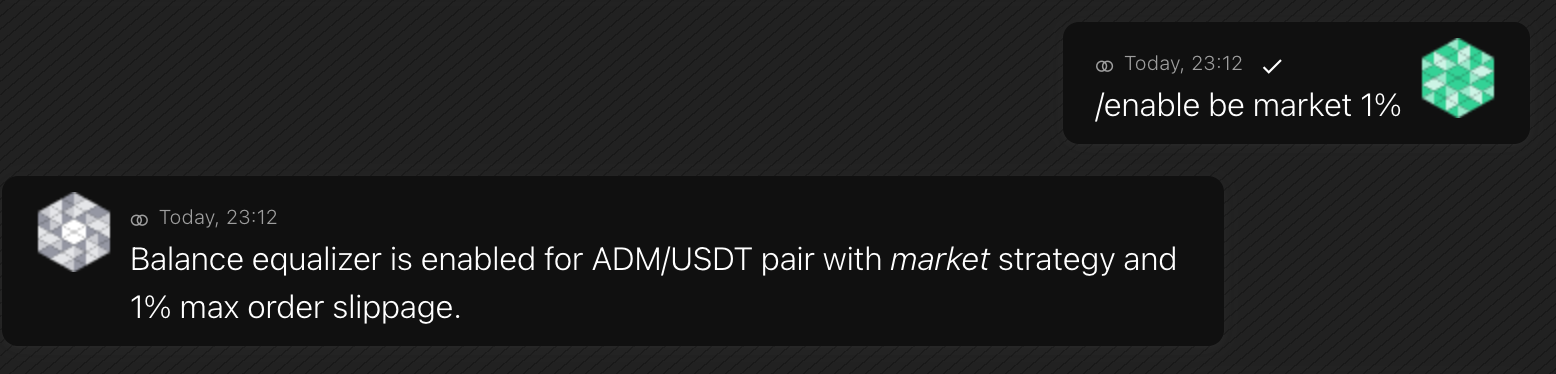
/enable be
For the feature description, refer to the Balance Equalizer.
Format
/enable be bp/enable be market [slippage]You can choose between two strategies:
- bp — update the ratio of buys and sells of the trading volume module
- market — buys/sells from the order book for instant correction. You can set the allowed
slippage.
Example
-
/enable sm
Enables the Spread maintainer module. After a price change, the bot places orders to restore the spread.
For the feature description, refer to Spread maintainer.
Format
/enable sm -
/enable on
Monitors the order book and notifies when significant third-party orders are placed or removed.
For the feature description, refer to Notifications about new orders.
Format
/enable on {amount} COIN [priority={amount}]Example
/enable on 1k USDT priority=2k -
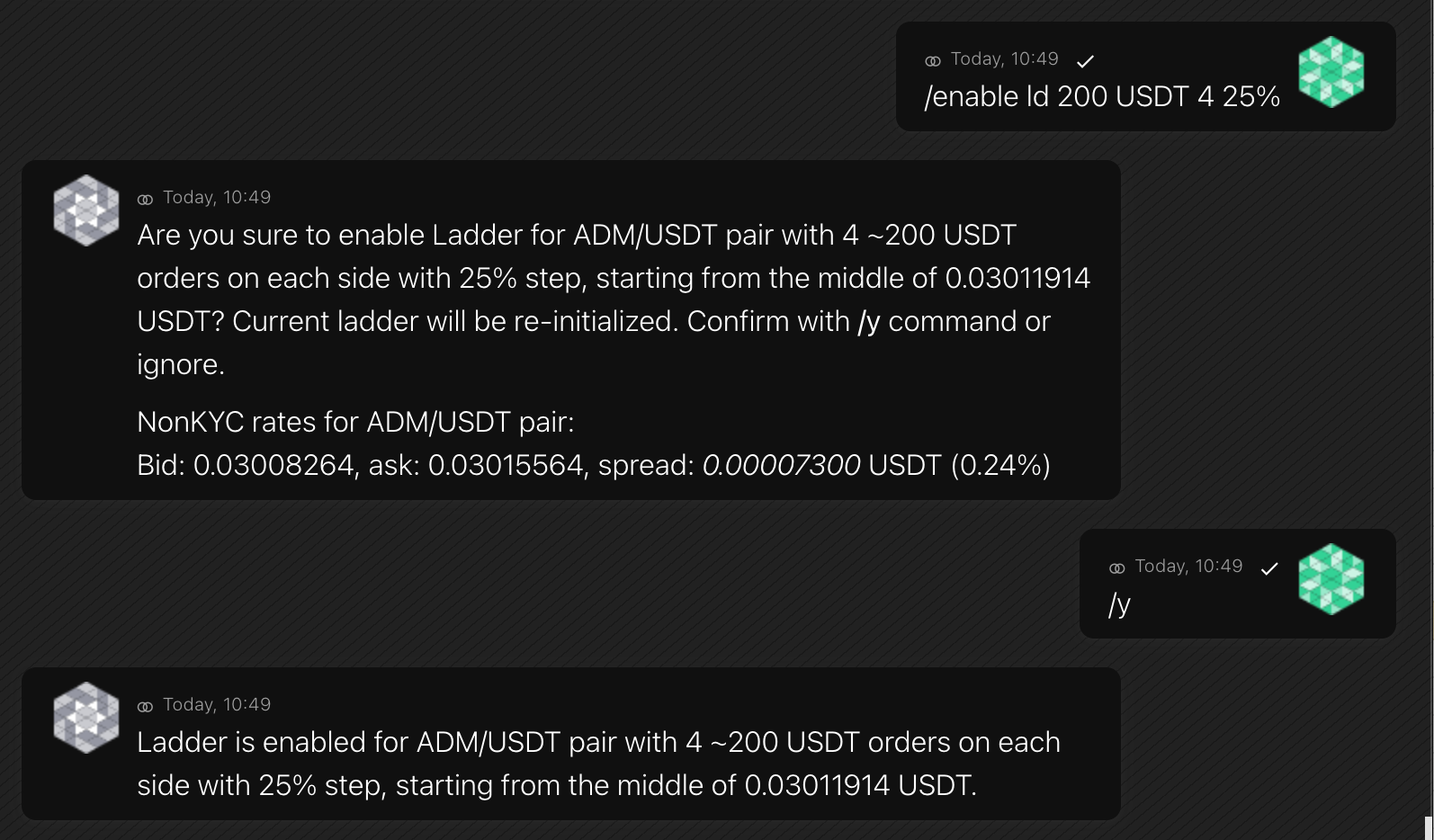
/enable ld
The Liquidity Grid is another way to place liquidity in the order book. Unlike the classic module, which places orders closer to the spread, the liquidity grid distributes them across the entire order book.
For the feature description, refer to the Liquidity Grid.
Format
/enable ld[2] [amount] [COIN] [count] step=[STEP%] [mid=[MIDPRICE] QUOTE] [recheck=2min] [gain=5] [sa=10%] [ba=5%] [aa] [spa=15%] [stopLd2At=60%]Parameters:
- amount — order value in COIN. The bot will set the
amountwith a random factor of 2%. It’s a float number with precision depending on an exchange. The value can be in BASE or QUOTE currency of the MM pair - count — number of orders each side, buy and sell. The total ld-orders count is
count* 2. - step — by how much consequent orders will differ by price in percent
[mid {midprice} QUOTE]— optional middle/start price setting. If not set, themidpricewill be(highest-bid + lowest-ask) / 2.
Second ladder instance: use
/enable ld2with the same parameters. Resume paused ladder:/enable ld resume. Pause:/disable ld pause.The command asks for a confirmation before running.
Example
- amount — order value in COIN. The bot will set the
-
/enable qh
The bot will look for the right moment to sell tokens in favor of USDT or BTC, with minimal impact on the price or leaving it the same.
For the feature description, refer to the Token sell strategy (USDT hunter).
Format
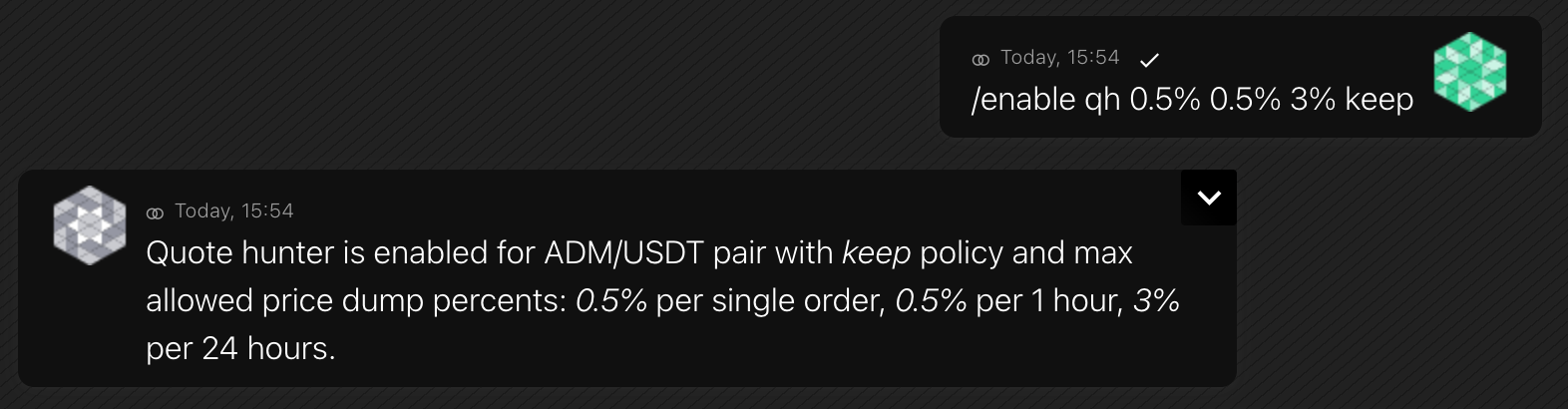
/enable qh [dump1o] [dump1h] [dump1d] [policy]Parameters:
- dump1o, dump1h, dump1d — allowed price dump in percent per 1 order, 1 hour, 1 day
- policy — one of the
dump,keep,none. Describes a bot behavior after placing a qh-order. For thedump, the bot will decrease the token price. For thekeep, the bot restores the price to the initial value. The valuenonemeans no further action is taken.
Example
-
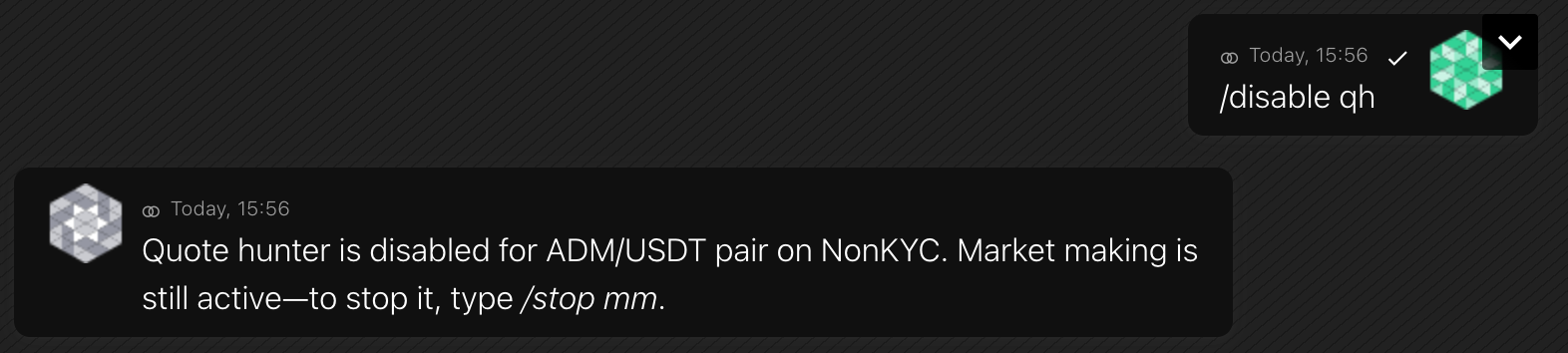
/disable
You can disable any features while the bot is running or not.
Disabling a feature doesn’t stop the market-making. To stop market-making, use the
/stopcommand instead.After a feature is disabled, the bot leaves all active orders of the feature as is. For example, when you stop Liquidity with the
/disable liqcommand, all opened liq-orders stay in the order book. To cancel them, use the/clearcommand.For ladder, you can pause without clearing parameters:
/disable ld pause. Resume with/enable ld resume.Available options — as the
/enablecommand offers.Format
/disable [feature] [pause]Example
-
/buy & /sell
These commands allow you to place an order manually, independent of other bot modules.
The bot stores information about active, manually placed orders in the internal database as the man type. Type the
/orders manto view the list of active manual orders.Depending on the price, a placed order can enter the order book or match immediately.
Format
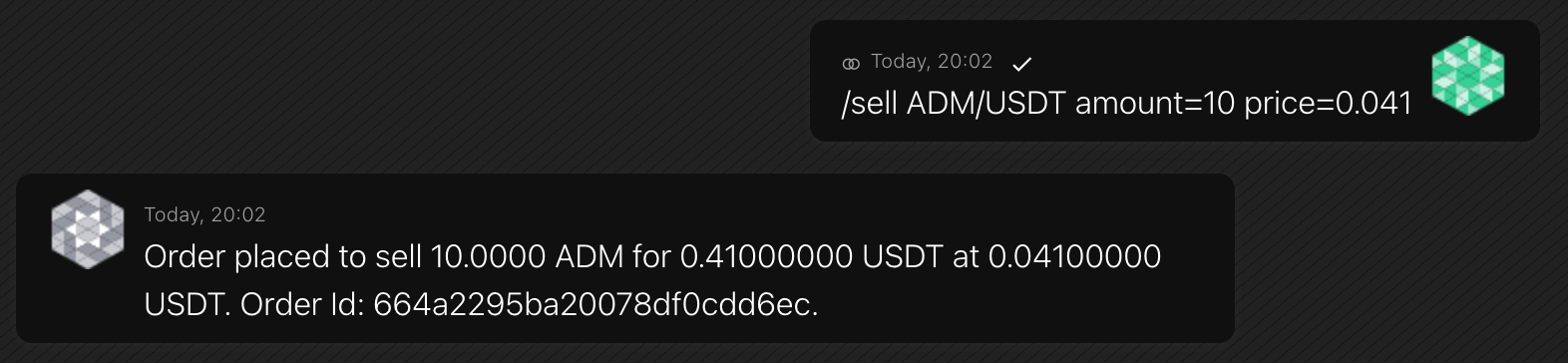
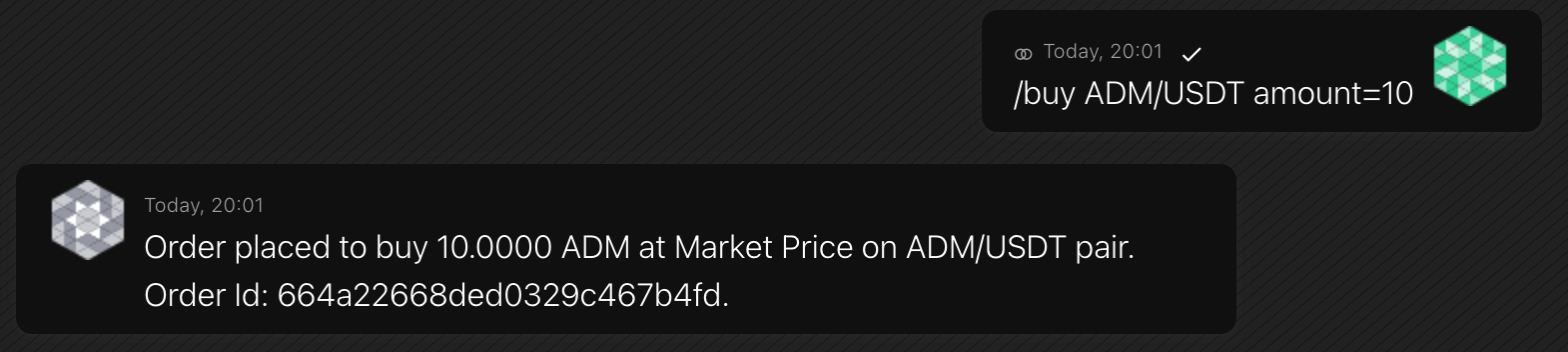
/{buy/sell} [pair] [amount= or quote=] [price=]If you omit a trading pair, the bot will place an order on the MM pair.
If you did not specify a price, the bot will place an order at a market price. The same result is for
price=market.You can set an order volume in tokens using the
amountor in a quote-currency using thequote.Note: Placing market orders is not available on all exchanges. Also, on some exchanges, the
amountis the only available option to set an order volume.Example
-
/convert
Converts one currency to another using the exchange conversion API, if supported. Large conversions may require confirmation with
/y.Format
/convert {amount} {coin1} to {coin2}Example
/convert 100 USDC to USD -
/fill
The
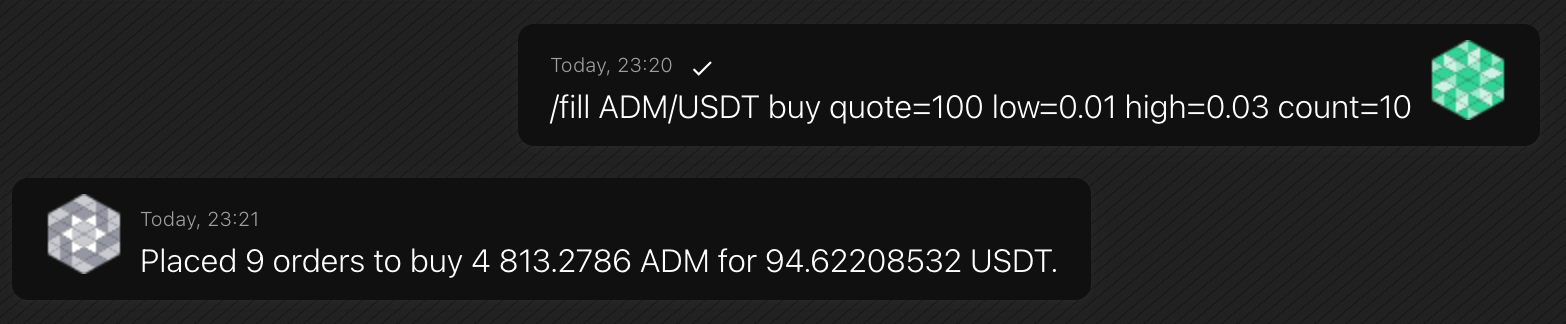
/fillcommand places several orders within a price range.As well as
/buyand/sellorders, the bot stores/fillorders as manually placed (man). Type the/orders manto view the list of active manual orders.Format
/fill [pair] {buy/sell} [amount= or quote=] [low=] [high=] [count=]If you omit a trading pair, the bot will place orders on the MM pair.
When buying, specify the
quote, and when selling, use theamount.The
lowandhighset the price range. The bot will place up tocountorders with total volume up to theamount / quote.Example
-
/clear
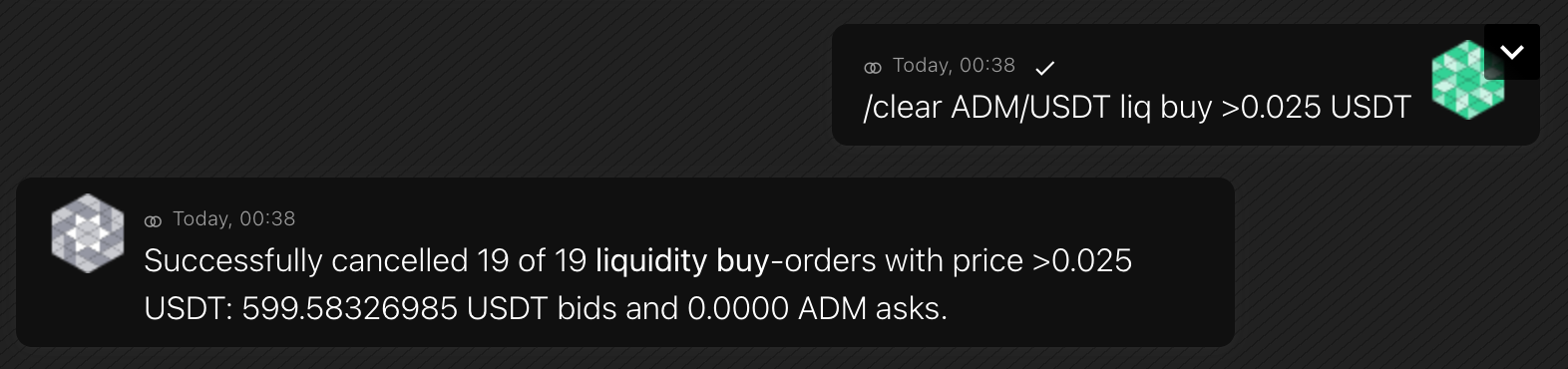
The list of active orders is available with the
/orderscommand.Format
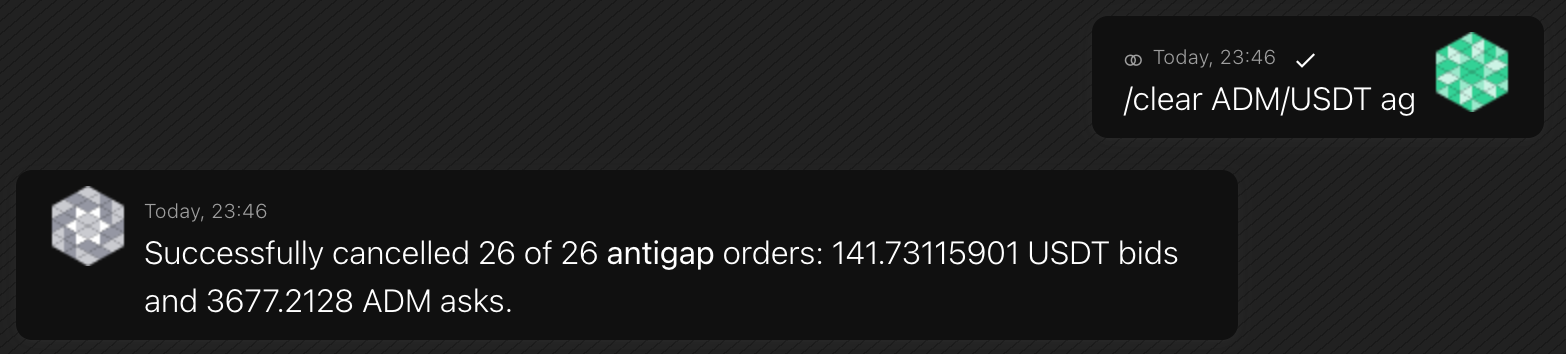
/clear [pair] [type] {buy/sell} [condition] {force}If you omit a trading pair, the bot will cancel orders on the MM pair.
Use
typeto filter orders to cancel, e.g.,manorld. If you specifyunk, the bot will cancel orders not in the internal database (unknown). To cancel all orders, including unknown, setall. See the/orderscommand to learn more about order types.If you specify
buyorsell, the bot will cancel only bids or asks.The
conditionis a price filter. The filter starts with the>or<sign, followed by the price and the quote coin. For example, you can cancel orders at a price higher than 1 USDT:>1 USDT.The price filter doesn't work with
allandunkorder types.Since the exchange API may have a limit on the number of requests, you can specify the
forceparameter to make several iterations.Examples
-
/make price
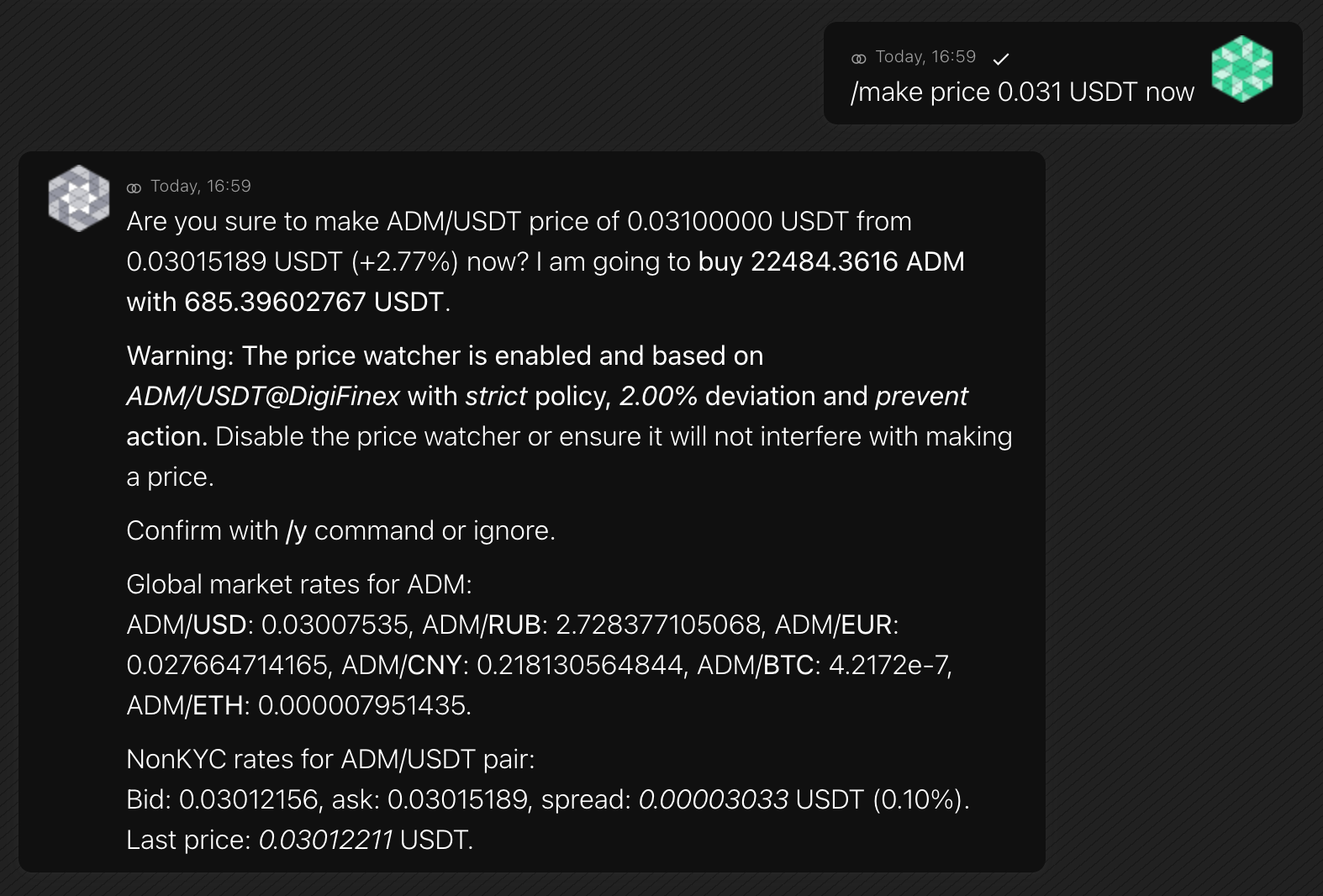
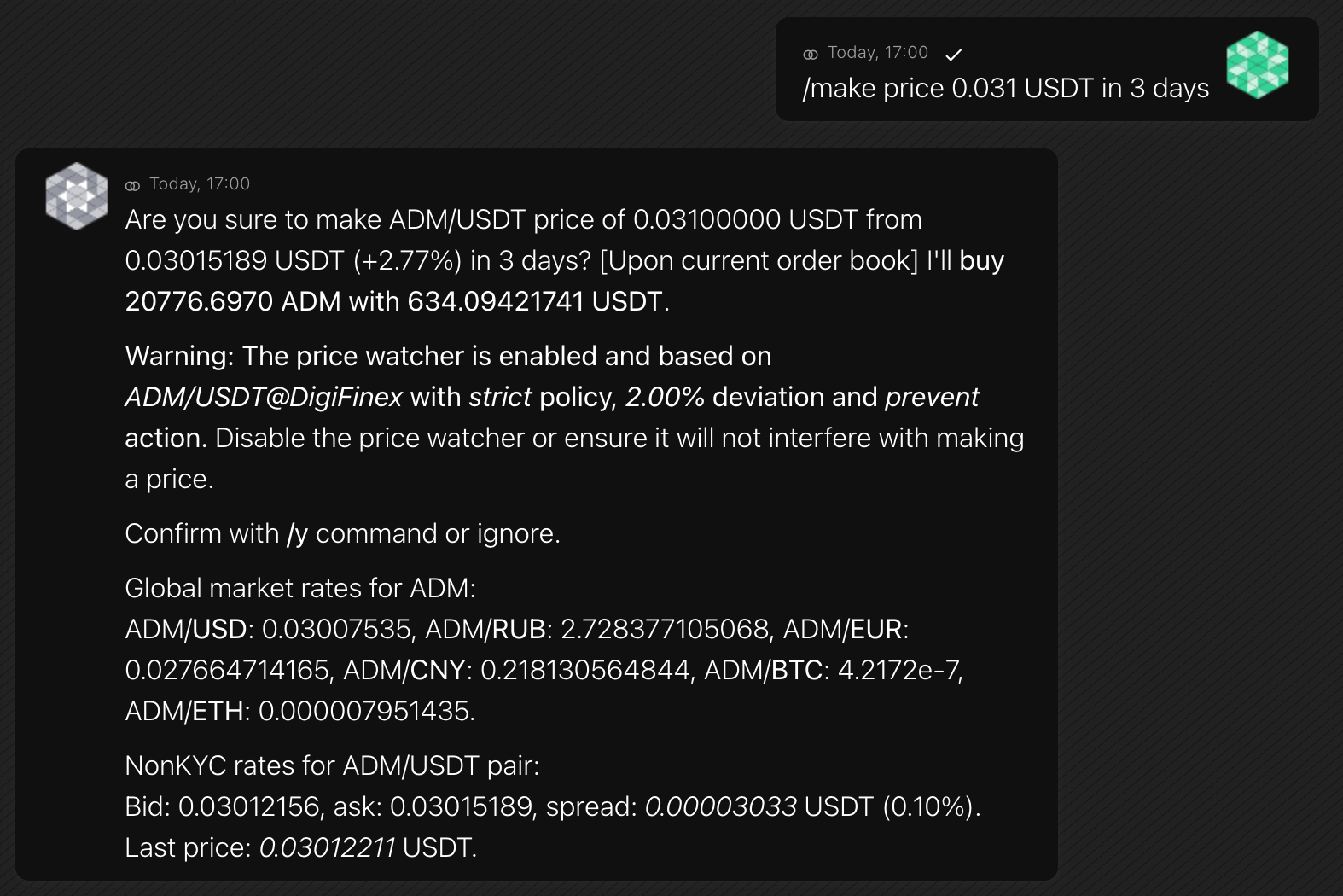
The bot will buy or sell tokens to achieve the price you desire. With the
nowoption, it will place a single order. Additionally, the Price maker feature offers the ability to achieve the desired price at some time.The bot estimates spending and asks for confirmation.
Format
/make price [target] QUOTE [now] [in {period}]Specify time:
- now — place a single order to achieve the
targetprice - in
period— gradually strive towards thetargetprice
Examples
- now — place a single order to achieve the
-
/make volume
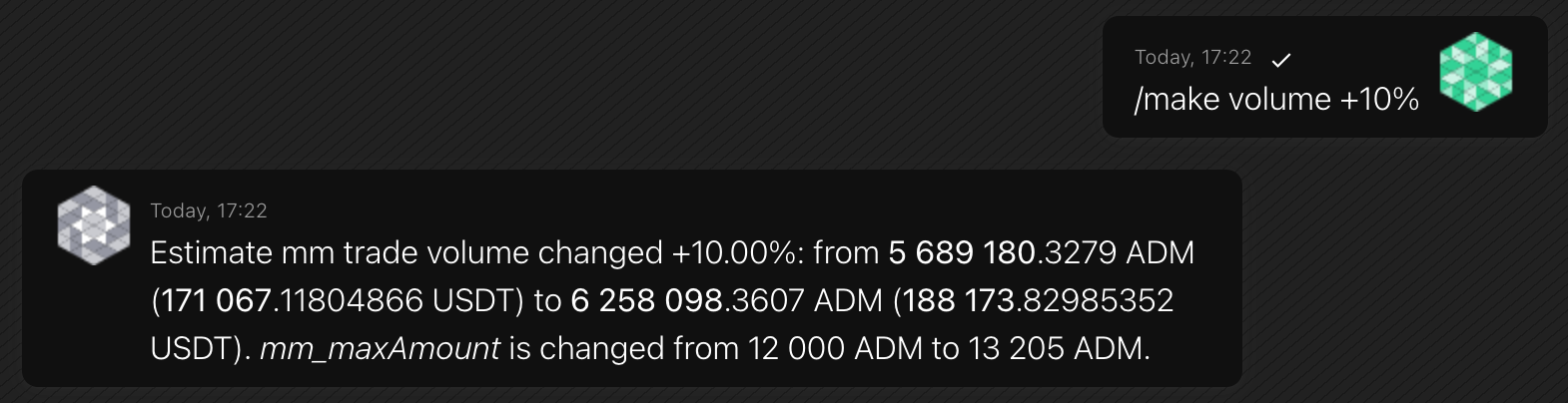
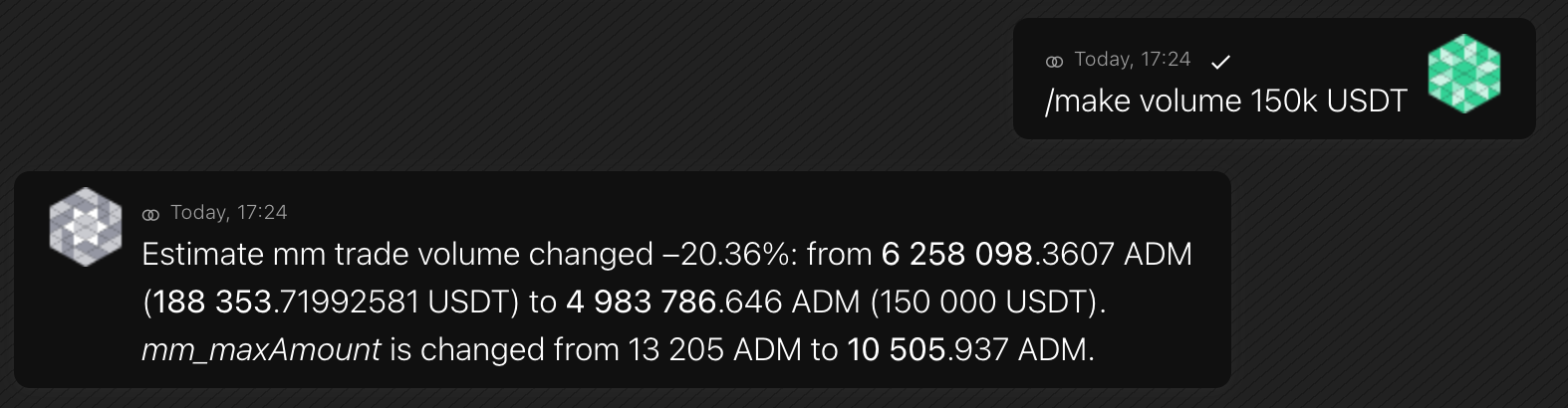
To change daily trading volume, you can use the
/make volumecommand in addition to the/amountand/interval.It updates the mm-order amount to change the trading volume.
Note: Daily trading volume is an estimate and depends on factors such as trading strategy, liquidity, and enabled features.
Format
/make volume [change] [target QUOTE]Choose an option:
- change — a volume change in percent relative to the current volume
- target — an absolute smart number in quote-currency
Examples
-
/twap
TWAP (Time-Weighted Average Price) is an algorithmic trade execution strategy that aims to achieve an average execution price close to the time-weighted average price of the user-specified period. A TWAP strategy is often used to minimize a large order’s impact on the market by dispersing the large order into smaller quantities and executing them at regular intervals over time.
TWAP is favored to provide a better execution price in the following scenarios:
- Order size larger than the available liquidity on the order book
- Anticipation of a high price volatility period with no clear up or downward trend To stop
To stop an active TWAP order, command
/twap stop.Format
You specify the order volume, maximum price, and time within which you want to close the deal:
/twap [pair] {buy/sell} [amount=] [maxprice/minprice=] [time=] [interval=] [strategy=]Parameters:
- pair — a trading pair where to place a tw-order
- buy/sell — buying or selling tokens
- amount — an order volume in tokens
- maxprice/minprice — maximum allowed price to execute a tw-order when buying or minimum allowed price when selling
- time — smart time for a whole tw-order execution
- interval — interval between tw-orders in smart time. The total order count for a command is
time / interval - strategy —
stepupwhen buying orstepdownwhen selling
Examples
/twap BTC/USDT buy amount=5 maxprice=48k time=20m interval=1m strategy=stepupThe bot will buy 5 BTC for USDT within 20 minutes at a price not exceeding 48,000 USDT.
/twap ADA/USD sell amount=100 minprice=0.6 time=5m interval=1m strategy=stepdown- Sells 100 ADA within a 5-minute window
- Opens five limit orders with an interval of 1m between each other. Every order value is 20 ADA
- Sells at a minimum price of 0.6 USD
-
/perpetual
Manages perpetual (futures) contracts on the configured exchange. Works only with perpetual symbols (for example,
BTCUSDT). If you omit the symbol, the bot uses the default perpetual pair from the config.Some sub-commands ask for confirmation with
/ywhen an open position exists or when closing a position.Sub-commands
- close — close the open position at market price.
/perpetual [symbol] close
Requires/yconfirmation. Does nothing if there is no open position. - leverage — set leverage for the contract.
/perpetual [symbol] leverage=X
If a position is open, the bot asks for/yconfirmation before changing leverage. - mmode — switch margin mode and set leverage in one command.
/perpetual [symbol] mmode=isolated leverage=X
/perpetual [symbol] mmode=cross leverage=X
Allowed modes:isolated,cross. On Kraken, useleverage=0withmmode=cross. If a position is open, confirmation via/yis required.
Examples
/perpetual BTCUSDT close/perpetual BTCUSDT leverage=10/perpetual BTCUSDT mmode=isolated leverage=10 - close — close the open position at market price.
-
/positions
Shows open perpetual contract positions (one-way mode).
Format
/positions [pair] {full}Alias:
/p -
/y
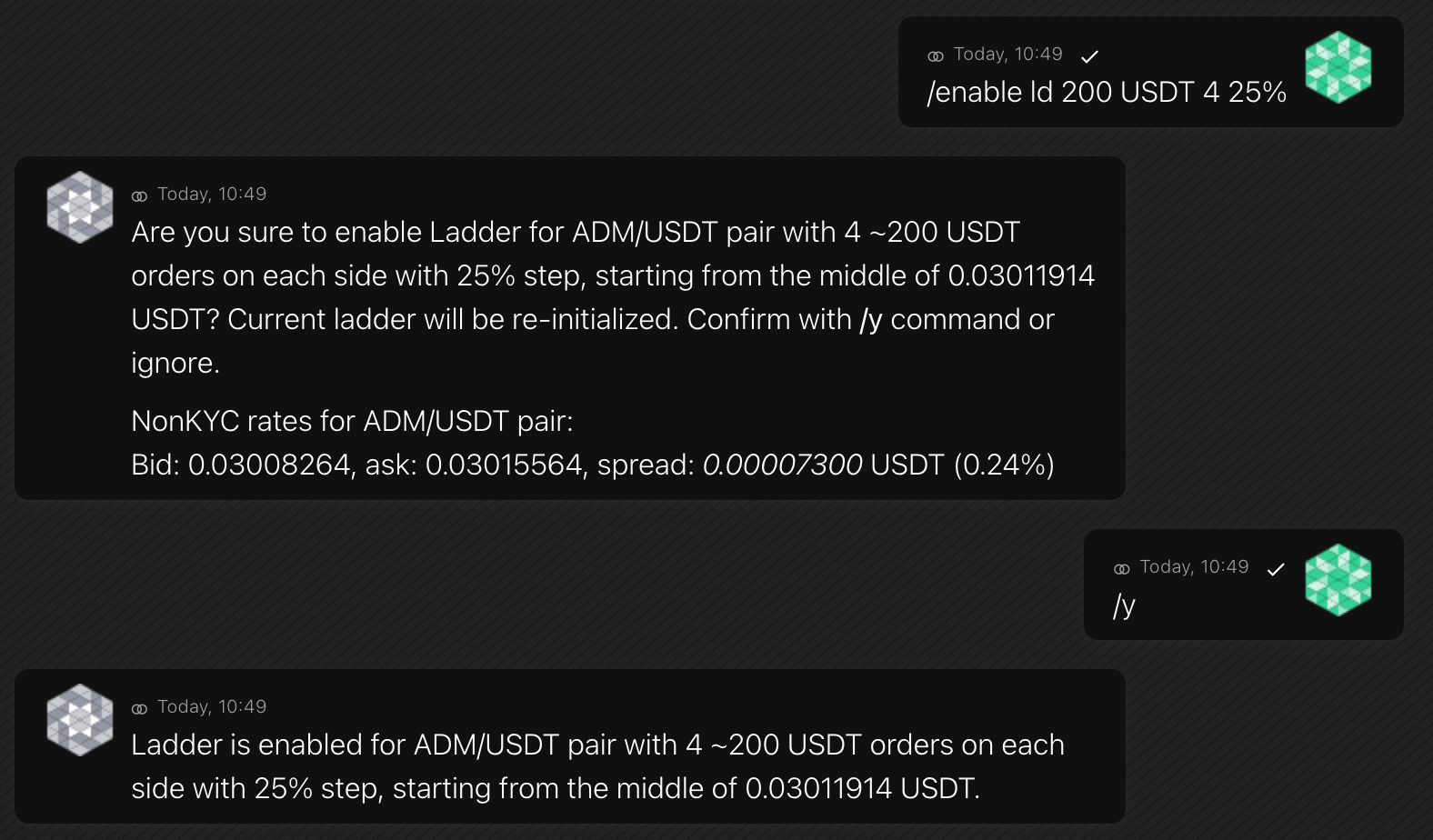
If a bot requests confirmation, the /y command will confirm. For example, see
/make price.Format
/yExample
-
/deposit
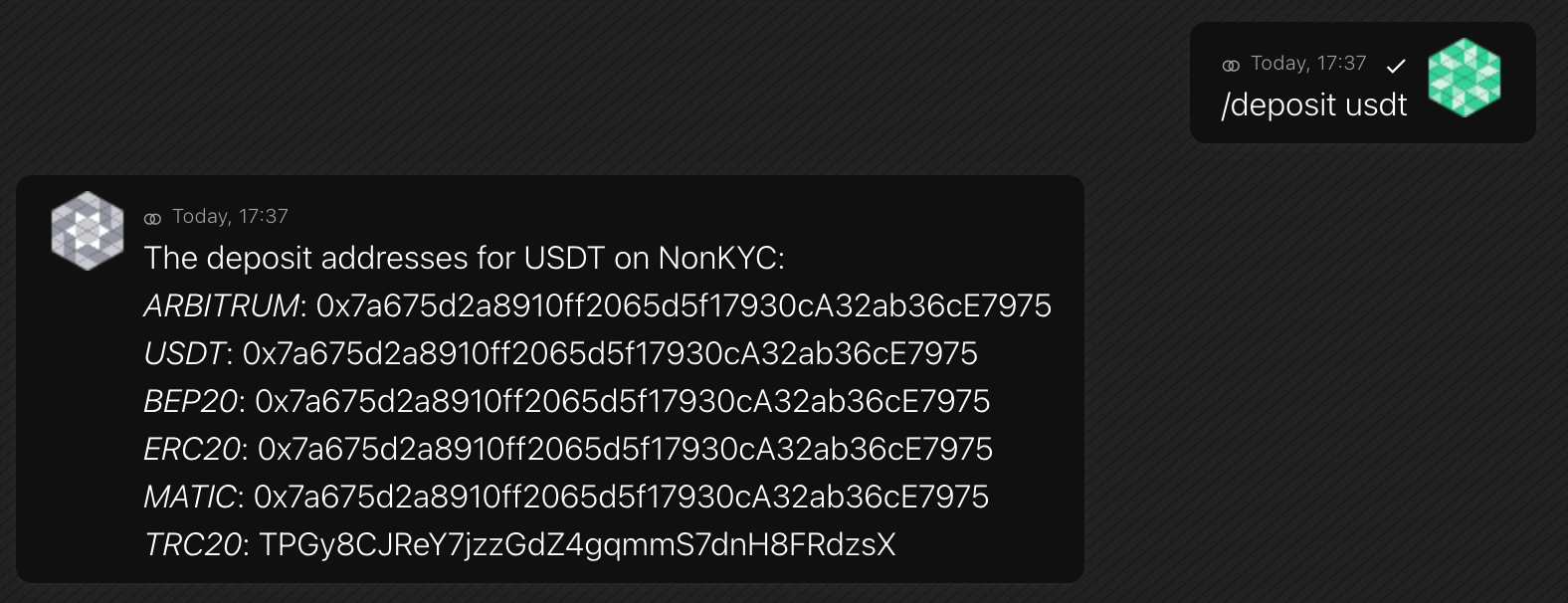
The command provides deposit addresses for all available networks.
If an exchange doesn't create deposit addresses by API, then use its website instead.
You can get current asset balances with the
/balancescommand.Format
/deposit [coin]Example
-
/withdraw
The command withdraws a coin from the exchange you’ve specified in the config file. You select the destination coin address, amount, and coin network. To see available networks, see the
/infocommand.Format
/withdraw [address] [amount] [coin] [network]Example
/withdraw 0x95222290DD7278Aa3Ddd389Cc1E1d165CC4BAfe3 12500 USDT ECR20 -
/show
Returns a list of the latest deposits or withdrawals or specific withdrawal info.
Format
/show {deposits/withdrawals} [coin] [count]Shows a list of the latest
countdeposits or withdrawals for thecoin. If you omit thecoin, the bot will show the list for all coins./show withdrawal [id]Shows the withdrawal info for the specific withdrawal
id.Examples
/show deposits USDT 7/show withdrawal 12345-abcde -
/transfer
Transfers funds between exchange sub-accounts, like main, trade, margin.
Format
/transfer [amount] [coin] from [type1] to [type2]Account naming like main, trade, margin depends on a specific exchange.
Examples
/transfer 100 USDT from trade to main -
/params
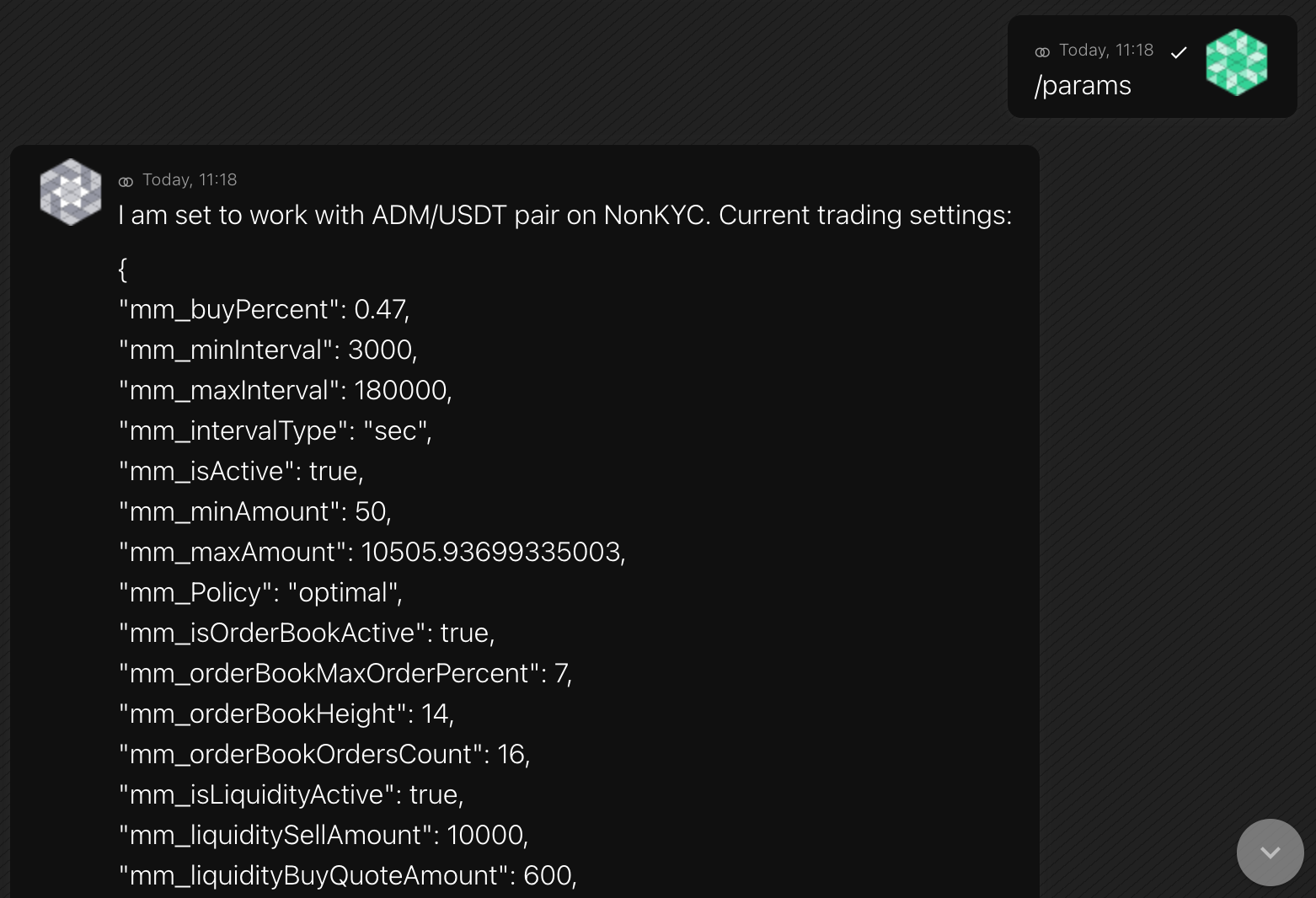
The command shows the parameters for the exchange you’ve specified in the config file. The bot stores parameters for every exchange in a separate file
/trade/settings/tradeParams_{exchange}.js.Format
/paramsExamples
-
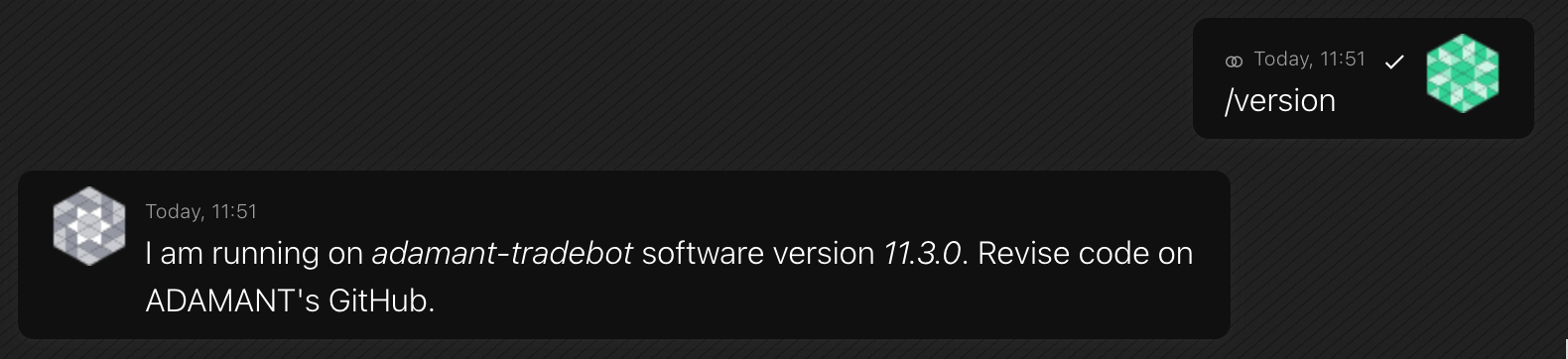
/version
Note: Check the actual version on Github regularly.
Format
/versionExamples
-
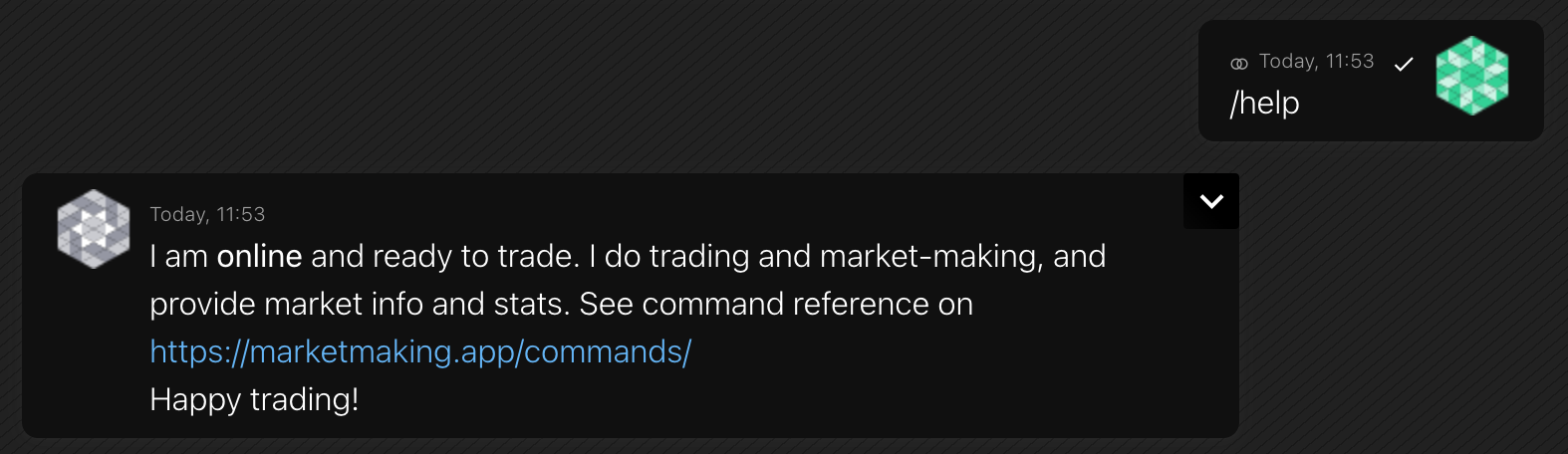
/help
A short help message.
Format
/helpExamples
-
/remote
The Bot Communication Server makes it easy to manage bots if you have several of them. You can send one command to all bots or a specific bot by specifying its ID.
Format
/remote [command] [-recipient] [-y]You specify the recipient bot:
-all— all connected bots-{id}— a specific connected bot. For example, ADM/USDT@NonKYC
If you add
-y, the bot will not ask for confirmation.You can also use command aliases:
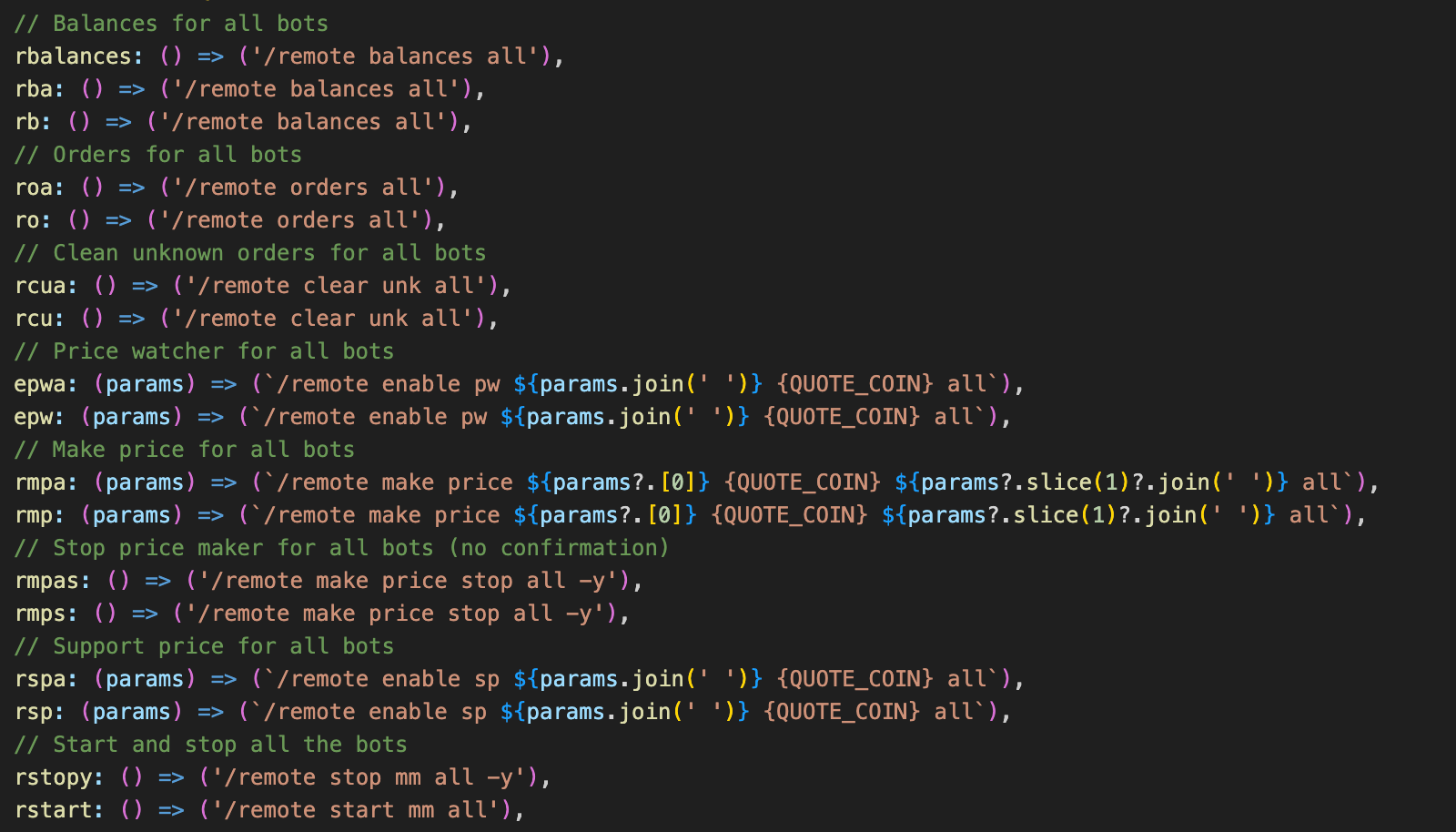
Examples
/remoteShows all the connected bots.
/remote balances -all/rbShows the balances of all bots in one message.
/remote make price 1.1 USDT in 5 days -all -yTells all the connected bots to achieve the price 1.1 USDT without a confirmation.
/remote enable pw 1-1.1 USDT -allSets the price range for all bots at once.
/remote make volume +25% -allIncreases the trading volume of all bots.
/remote make volume -20% ADM/USDT@NonKYCDecreases the trading volume for the ADM/USDT@NonKYC bot.